Why Sustainable Social Media Growth Requires More Than Going Viral
Barsha Bhattacharya, 18 hours ago

Today’s topic: How to enable Snapchat dark mode Android?
Dark mode is a popular feature on most apps in 2025. It offers a comforting viewing experience, especially in environments that have low lighting. Additionally, Snapchat has introduced this mode for all its users, surpassing the competition.
Yes, you can enable this mode on Snapchat now. Earlier, only iPhone users could use this mode, but now, both iPhone and Android users can enable this mode. And I’m here to help you enable the dark mode on your Snapchat.
Stay tuned.
“Dark mode” is a trending feature on smartphones that reduces eye strain, conserves battery on OLED devices, and offers a simple aesthetic. If you’re an Android user feeling left out of the fun with Snapchat’s dark mode, you’re certainly not alone.
Snapchat has historically lagged behind many applications in supporting dark mode on Android, but don’t stress. This guide on how to enable dark mode on Snapchat for Android will show you how to turn on dark mode step-by-step, using either the official method, which is not currently recommended, or an equally effective alternative method.
As of 2025, Snapchat has partially rolled out dark mode support on Android, but it’s still not universally available for all devices. While iOS users have had dark mode since 2021, Android users often need to rely on developer settings or workarounds.
Snapchat has not officially announced the global rollout of Android support, but improvements are being released gradually, and some Android devices now support the feature natively.
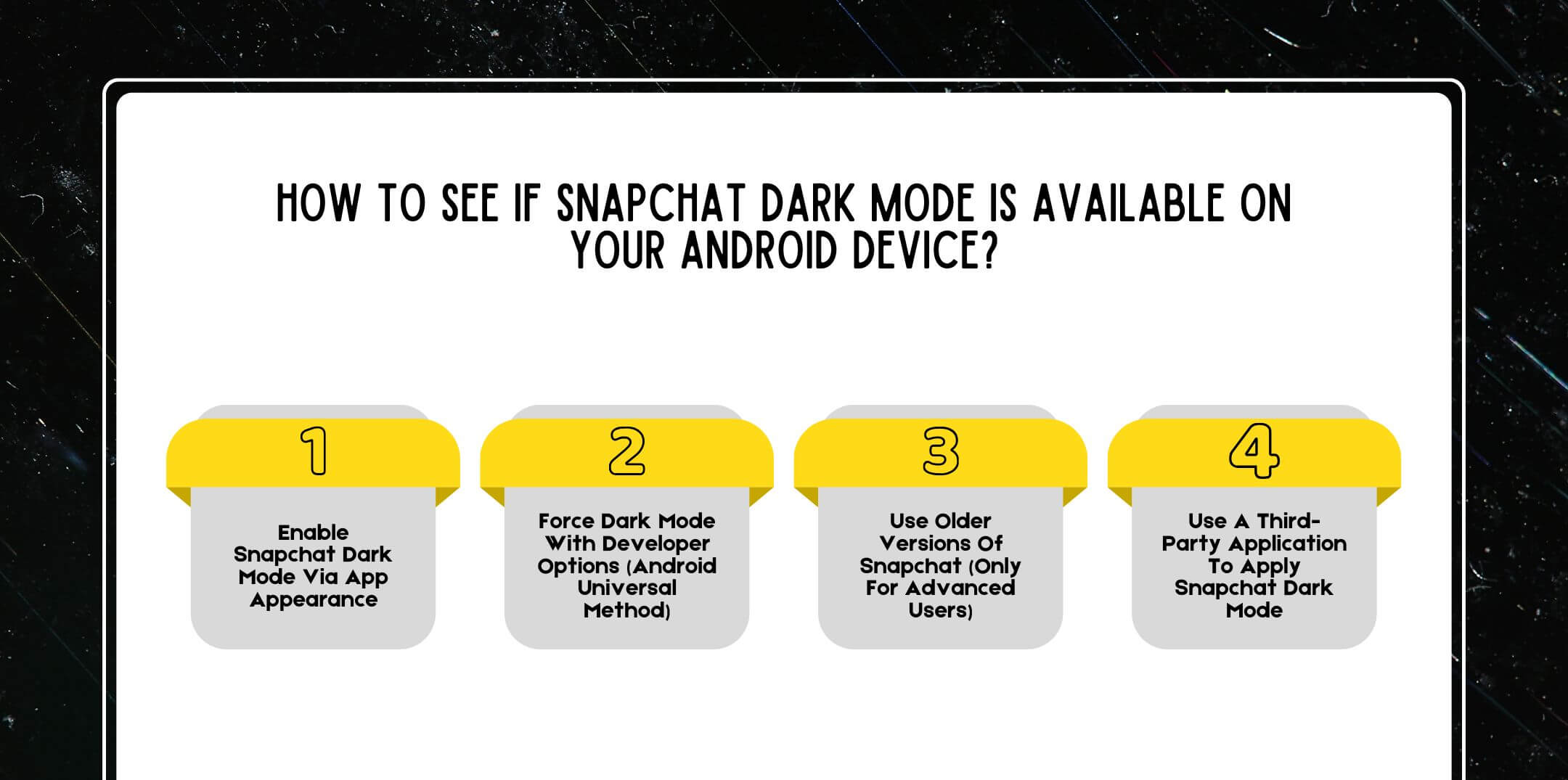
Before starting to use workarounds for the dark mode feature, it is essential to check if your version of Snapchat has built-in dark mode support:
Steps:
If you see App Appearance, congratulations! Moreover, you can access Snapchat dark mode on Android without any hacks!
Steps (if the App Appearance option is there):
You will have the Snapchat app in dark mode, and the sleek dark interface you want will be yours.
If the “App Appearance” option does not appear in Android Snapchat, you can try forcing dark mode using developer options.
Important Note: This forces dark mode for every app, which may cause glitchy UI experiences with Snapchat.
Follow these steps on how to enable Developer Options and run dark mode:
Now go back to Snapchat and see if there are darker interface elements. Though it’s not precisely like dark mode, it’s close enough.
Some Android users reported that they were able to enable a switch for dark mode themes through the system UI by downloading older APKs of Snapchat.
Please Note: I do not generally recommend this method for everyday users due to security concerns. Use it only if you understand APK use and are downloading apps from trusted locations.
There are third-party applications (such as Substratum Theme Engine) that can apply a shared dark theme across applications, including Snapchat. Moreover, using this approach requires a rooted device and has warranty issues, safety concerns, and requires rooting your device.
Why It’s Not Ideal:
Knowing just how to turn on the dark mode of Snapchat is not enough. If you don’t like the dark mode and want to switch back to the bright colors, then here’s how to do it.
By following these steps, you can easily switch from the dark mode on Snapchat to its default light theme.
Sometimes, even if the setting is available, Snapchat may not properly switch to dark mode due to:
Activating Snapchat dark mode on the Android app isn’t just a preference. There are actual advantages to it as well:
Similar to the Android and iOS versions, you can also change the mode of Snapchat Web.
So, if you are constantly using Snapchat on your phone as well as on web browsers, here’s how to change it into dark mode.
Users’ reviews generally fall into one of two groups:
● Positive: “I love the dark mode on my Galaxy S23. My eyes thank me every night.”
● Negative: “Why is Snapchat dragging its feet to release dark mode for android users? It is 2025!”
Moreover, these reviews reflect the fragmented experience Android users still face. If your device doesn’t yet support the dark mode natively, be patient—Snapchat updates frequently, and more full rollouts are expected soon.
Explore the most frequently asked questions about Snapchat’s dark mode for Android.
It’s because the dark mode feature isn’t yet enabled for your device or region. You can try using the Developer Options method to force dark mode, which is a safe and reliable workaround.
Third-party apps that force dark mode may not be entirely safe. They may compromise your data and run foul of Snapchat’s terms of service – you shouldn’t use them.
No, it only changes the visual theme. Functionality will be the same for all features.
We do not have an official date. However, outside sources within the industry expected full rollout to all Android devices by the end of 2025. Moreover, owners should stay up to date with app updates and periodically check the App Appearance section.
Enabling Snapchat’s dark mode on Android may not be straightforward for every user yet, but reliable workarounds are available. Whether you’re switching via settings, developer mode, or simply waiting for official support, you’re on the path to a more comfortable and stylish Snapchat experience.
As Snapchat continues to update its Android app, expect better integration and broader availability of dark mode. Until then, use the methods shared above to enjoy a darker, more eye-friendly UI.
Either bookmark this page or just save these steps. Moreover, always keep your Snapchat app updated, to be able to access the latest features being released (like full Snapchat dark mode support on Android when it’s available).
Read Also:

A self-proclaimed Swiftian, Instagram-holic, and blogger, Subhasree eats, breathes, and sleeps pop culture. When she is not imagining dates with Iron Man on Stark Tower (yes, she has the biggest crush on RDJ, which she won’t admit), she can be seen tweeting about the latest trends. Always the first one to break viral news, Subhasree is addicted to social media, and leaves out no opportunity of blogging about the same. She is our go-to source for the latest algorithm updates and our resident editor.