
How Long Can A Reel Be On Instagram In 2026? What 10 Years On This Platform Has Taught Me?
sibashree bhattacharya, 3 days ago
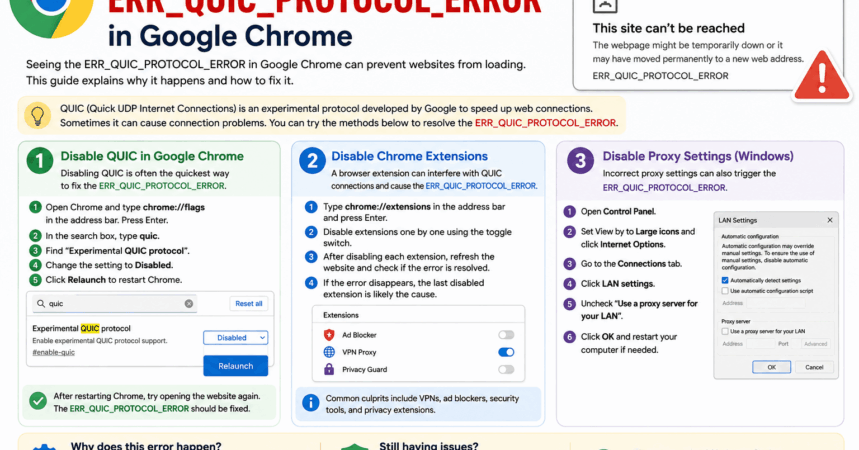
If you regularly browse the internet using Google Chrome, you may eventually come across the ERR_QUIC_PROTOCOL_ERROR message while trying to open a website. This error can appear unexpectedly and may prevent certain pages from loading correctly.
In most cases, the ERR_QUIC_PROTOCOL_ERROR issue is related to Chrome’s QUIC protocol settings, browser extensions, or local network configuration. Although the error may look technical, the fixes are usually simple and only take a few minutes to apply.
This guide explains what the ERR_QUIC_PROTOCOL_ERROR message means, why it happens, and several methods you can use to fix it.
The ERR_QUIC_PROTOCOL_ERROR message appears when Google Chrome encounters a problem while using the QUIC protocol to connect to a website.
You may see an error similar to this:
This site can’t be reached.
The webpage might be temporarily unavailable or may have moved permanently to a new address.
ERR_QUIC_PROTOCOL_ERROR
QUIC, which stands for Quick UDP Internet Connections, is a protocol developed to improve browsing speed and reduce connection delays. Unlike traditional internet connections that rely on TCP, QUIC uses UDP to establish faster communication between browsers and web servers.
While the protocol is designed to improve performance, it can occasionally create compatibility issues with certain browser extensions, proxy servers, or network settings. When this happens, Chrome may display the ERR_QUIC_PROTOCOL_ERROR message.
Fortunately, there are several reliable ways to resolve the problem.
One of the fastest ways to fix the ERR_QUIC_PROTOCOL_ERROR issue is to disable the QUIC protocol in Chrome.
Chrome enables QUIC by default, but disabling it generally does not affect everyday browsing for most users.
chrome://flagsquicAfter Chrome restarts, try loading the website again to see if the ERR_QUIC_PROTOCOL_ERROR message has been resolved.
Browser extensions are another common cause of the ERR_QUIC_PROTOCOL_ERROR issue.
Extensions related to VPNs, ad blocking, security filtering, or privacy protection can sometimes interfere with Chrome’s network connections.
chrome://extensionsERR_QUIC_PROTOCOL_ERROR problem.Once you find the problematic extension, you can either remove it permanently or leave it disabled.
Improper proxy settings can also trigger the ERR_QUIC_PROTOCOL_ERROR message in Chrome.
If you are using Windows, disabling the proxy server may help restore normal browsing.
Control PanelUse a proxy server for your LANRestart your computer if necessary, then test Chrome again to check whether the ERR_QUIC_PROTOCOL_ERROR issue has disappeared.
The ERR_QUIC_PROTOCOL_ERROR issue typically occurs when Chrome cannot properly establish a QUIC-based connection.
This may happen because of:
Since QUIC is not essential for normal browsing, disabling it often forces Chrome to use more stable connection methods, which can quickly solve the problem.
Although the ERR_QUIC_PROTOCOL_ERROR message can interrupt your browsing experience, it is usually easy to fix with a few simple adjustments.
Most users can resolve the ERR_QUIC_PROTOCOL_ERROR problem by:
If the issue still persists after trying these methods, updating Chrome or resetting the browser settings may help restore normal connectivity.

Barsha is a seasoned digital marketing writer with a focus on SEO, content marketing, and conversion-driven copy. With 8+ years of experience in crafting high-performing content for startups, agencies, and established brands, Barsha brings strategic insight and storytelling together to drive online growth. When not writing, Barsha spends time obsessing over conspiracy theories, the latest Google algorithm changes, and content trends.

sibashree bhattacharya, 3 days ago

Subham Kamila, 3 days ago