
How Long Can A Reel Be On Instagram In 2026? What 10 Years On This Platform Has Taught Me?
sibashree bhattacharya, 3 days ago
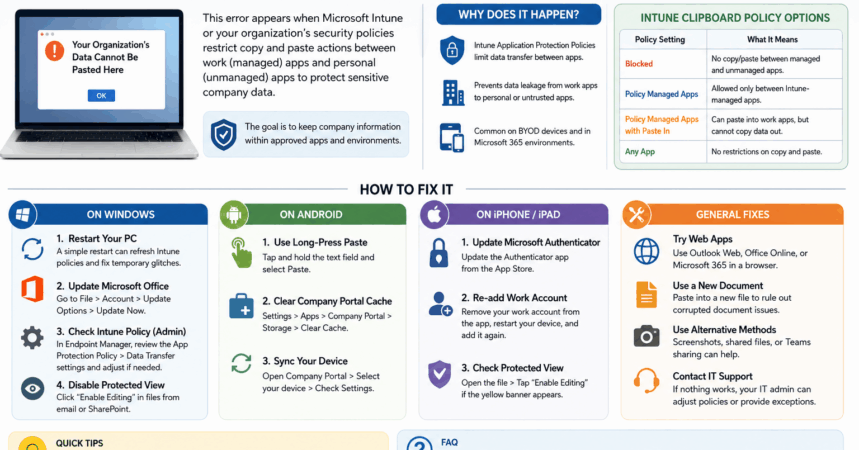
If you have ever seen the “Your Organization’s Data Cannot Be Pasted Here” message while trying to copy and paste information between apps, you are not alone. This error is commonly linked to Microsoft Intune and other workplace security systems that control how company data is shared across devices and applications.
Organizations use these restrictions to protect confidential business information from being transferred into unauthorized apps. Although the feature improves security, it can also interrupt daily work when clipboard access suddenly stops working.
Fortunately, there are several ways to troubleshoot the issue on Windows, Mac, Android, and iPhone devices.
Most businesses that use Microsoft 365 rely on Microsoft Intune to manage employee devices and corporate applications. Intune allows IT administrators to create security policies that restrict how users move data between work and personal apps.
For example, if you copy text from a company-managed Outlook account and attempt to paste it into a personal app like WhatsApp or Notes, the action may be blocked immediately.
This issue is especially common in:
The main purpose of these restrictions is to prevent sensitive information from leaving secure applications.
Microsoft Intune offers several clipboard control settings. The policy selected by your organization determines what users can copy and where they can paste it.
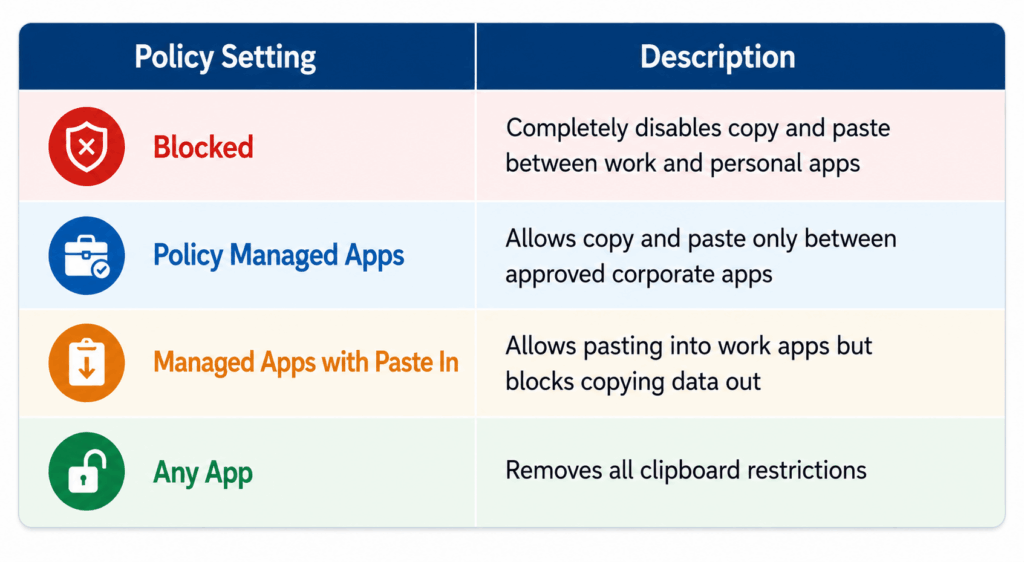
The stricter the security policy, the more limited clipboard functionality becomes.
Before trying advanced troubleshooting methods, restart your computer or mobile device.
Temporary synchronization problems between Office apps and Intune policies can sometimes trigger false clipboard restrictions. Restarting the device refreshes services and clears temporary cached data.
On Windows:
Mac users can restart directly from the Apple menu.
After the reboot finishes, test copy and paste again.
Outdated Office apps occasionally conflict with newer Intune security policies.
Updating Word, Excel, Outlook, and other Microsoft applications may resolve the issue quickly.
To update Office:
Allow all updates to install completely before reopening the applications.
If you have administrative access, reviewing the policy directly inside Microsoft Endpoint Manager may help.
To check clipboard settings:
After saving changes, policies usually sync across devices within about 30 minutes.
Android users frequently encounter clipboard restrictions while switching between Outlook, Teams, browsers, and messaging apps.
Here are several solutions that may help.
Some Android keyboards handle Intune restrictions differently.
Instead of using keyboard shortcuts:
In some cases, this works even when normal paste actions fail.
The Microsoft Company Portal app manages work-related policies on many Android devices. Corrupted cache files can sometimes interfere with clipboard permissions.
To clear the cache:
This refreshes temporary policy data without removing the work account.
A manual sync may resolve policy synchronization issues.
To sync your device:
Once finished, reopen the affected apps and test the clipboard again.
Apple devices often use Microsoft Authenticator together with Intune for workplace security management.
If clipboard restrictions continue appearing, try the following fixes.
Older versions of Microsoft Authenticator may cause communication problems with Intune services.
To update the app:
After updating, restart Outlook or other managed apps.
Reconnecting the account forces a fresh policy registration.
To do this:
This process often fixes synchronization-related clipboard issues.
Sometimes the problem comes from the document itself rather than Intune policies.
Files downloaded from Outlook, SharePoint, or Teams often open in Protected View, which can limit editing and clipboard functions.
You will usually see a yellow warning banner near the top of the document.
To enable editing:
Once editing is enabled, copy and paste functions may start working normally again.
If Protected View repeatedly causes clipboard problems, you can change the settings manually.
Steps:
Be cautious when modifying these settings because they reduce certain document security protections.
Some organizations apply very strict security policies that users cannot bypass on their own. In those cases, these alternative methods may help.
Web versions of Microsoft apps sometimes follow different clipboard rules than desktop applications.
You can try:
In some situations, copy and paste works properly inside the browser even when desktop apps block it.
Corrupted documents occasionally trigger clipboard errors.
To test this:
If the paste works in the new file, the original document may contain damaged permissions or formatting problems.
If clipboard access remains restricted, consider other approved methods for moving information, such as:
These methods help maintain compliance with company security policies.
If none of the troubleshooting methods work, the restriction is likely enforced intentionally by your organization.
When contacting IT support, explain:
Administrators may be able to adjust security settings or create policy exceptions depending on business needs.
The message indicates that your organization’s security policy is blocking clipboard activity between certain applications.
In most cases, no. Clipboard policies are usually controlled by IT administrators through Microsoft Intune.
Managed corporate apps are often allowed to exchange data with each other, while personal apps remain restricted.
Not necessarily. Screenshot protection and clipboard protection are usually managed separately.
Most policy changes synchronize within about 30 minutes, although timing may vary depending on the network and device.
The “Your Organization’s Data Cannot Be Pasted Here” error is designed to protect company information from being shared outside approved applications. While the restriction can sometimes feel inconvenient, it plays an important role in workplace security.
In many cases, simple fixes like restarting your device, updating Office applications, clearing cache files, or re-syncing work accounts can solve the issue quickly. If the restriction comes directly from company policy, your IT department may need to make adjustments on the administrative side.
Understanding how these clipboard restrictions work makes it much easier to troubleshoot the problem and restore productivity without compromising organizational security.

Barsha is a seasoned digital marketing writer with a focus on SEO, content marketing, and conversion-driven copy. With 8+ years of experience in crafting high-performing content for startups, agencies, and established brands, Barsha brings strategic insight and storytelling together to drive online growth. When not writing, Barsha spends time obsessing over conspiracy theories, the latest Google algorithm changes, and content trends.

sibashree bhattacharya, 3 days ago

Subham Kamila, 3 days ago