What Does A Computer Programmer Do: Essential Guide
Barsha Bhattacharya, 11 minutes ago
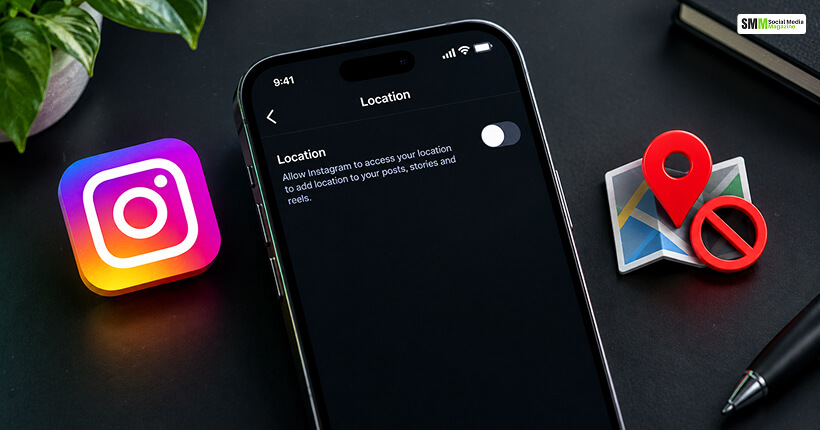
Every time I uploaded a photo from a neighborhood cafe or tagged a scenic view on a weekend getaway, I used to think I was just sharing a memory.
However, then I took a closer look at my privacy settings. I realized that my smartphone was quietly recording and broadcasting my exact geographic coordinates to Meta’s data centers.
The platform does more than just let you manually attach a location tag to your public posts.
By default, its background tracking systems constantly monitor your real-world movements. Furthermore, it maps out daily routines, workplace locations, and private habits to feed its targeted advertising algorithms.
Most online privacy tutorials offer a dry, outdated checklist of menus that don’t match the modern app interface.
To see exactly how to lock down these tracking pipelines, I spent time auditing my privacy configurations across both iOS and Android platforms.
I didn’t just toggle a single superficial switch. Instead, I stripped the app of its precise tracking permissions and wiped my old metadata history.
Finally, I tested the results to ensure my real-world movements remained completely anonymous.
Reclaiming your digital boundaries requires moving past standard social media habits.
If you want to know how to turn off location on instagram permanently, here is the exact first-person roadmap based on my hands-on privacy audit. I will also evaluate the critical reasons why you need to secure this access point today.
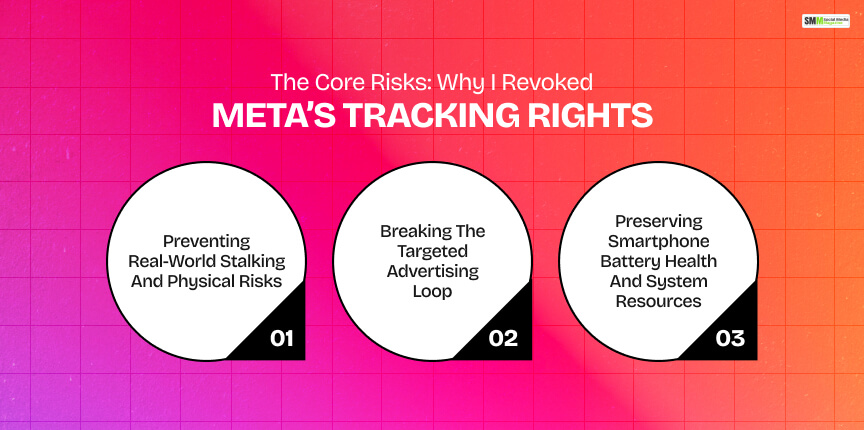
Before diving into the system settings, it is vital to understand the real-world safety implications of background geographic tracking.
Leaving your location permissions on creates an invisible digital trail that exposes you to multiple personal and digital risks as well as vulnerabilities.
The most alarming realization during my privacy check was how easily an outsider could exploit public location tags to track my real-world movements.
When you regularly post from your favorite gym, a local workspace, or your neighborhood park, you are inadvertently publishing a predictable map of your weekly routine.
For anyone concerned with personal safety, disabling this background tracking is the first line of defense against physical stalking and unwanted real-world monitoring.
The corporate business model of Meta relies heavily on tracking your physical location to serve hyper-localized advertisements.
For instance, you walk past a specific retail storefront or spend an afternoon at a shopping mall. Following this, the app will index those coordinate logs to flood your feed with targeted local promotions.
Revoking these access rights will break this continuous corporate surveillance loop. Thus, you can stop the platform from packaging your physical steps into monetizable ad data.
On a purely practical level, allowing an app to constantly ping global positioning satellites (GPS) in the background causes heavy battery drain.
During my testing week, I ensured that my location services were fully disabled. Accordingly, I noticed that my smartphone’s daily battery life improved noticeably.
Killing the background tracking will stop the unnecessary background synchronization loops. As a result, this keeps your device running cooler and more efficiently throughout the day.
To completely block the platform from tracking my movements on an Apple device, I had to bypass the app’s internal menus entirely.
The absolute master switch lives directly inside the iPhone’s core operating system.
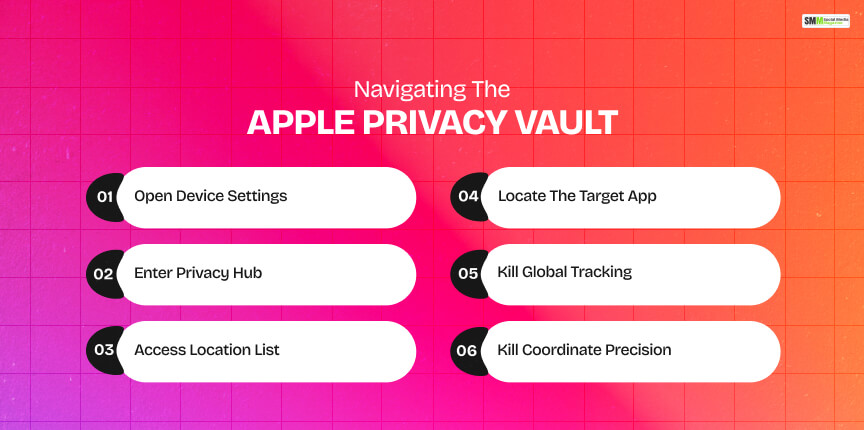
First, I opened my iPhone Settings app and scrolled down to the privacy section labeled Privacy & Security.
From there, I tapped the very top option, which is Location Services, to open the master list of applications that hold tracking permissions.
| Steps | Action Required | Navigation Path | Target Setting |
|---|---|---|---|
| Step 1 | Open Device Settings | Launch the native Settings application on your iPhone. | System Menu |
| Step 2 | Enter Privacy Hub | Scroll down the main menu and select the privacy block. | Privacy & Security |
| Step 3 | Access Location List | Tap the very top configuration option to view application privileges. | Location Services |
| Step 4 | Locate the Target App | Scroll down the alphabetical application list and select the platform. | |
| Step 5 | Kill Global Tracking | Change the active checkmark from “While Using” to the absolute block. | Select Never |
| Step 6 | Kill Coordinate Precision | Locate the secondary toggle switch directly below and slide it left. | Toggle Precise Location OFF |
I scrolled down the alphabetical list until I located the entry for Instagram. Inside this specific management panel, the system presented me with multiple access levels.
First, I changed the access checkmark from “While Using the App” to Never.
Next, I looked directly below the selection and toggled the switch for Precise Location to the off position.
This two-layer adjustment ensures the app cannot access even a rough estimate of my coordinates through nearby cellular towers or local Wi-Fi networks.
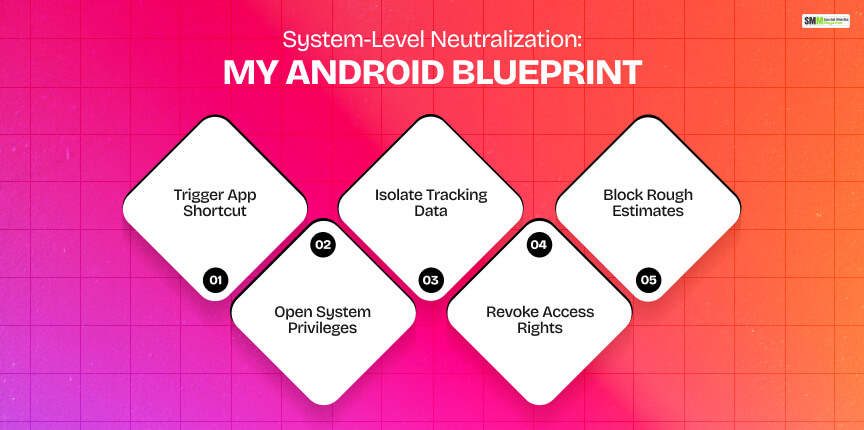
Android operating systems use different interface designs depending on the manufacturer. Thus, tracking down the exact privacy toggles requires a slightly different navigation path.
| Steps | Action Required | Navigation Path | Target Setting |
|---|---|---|---|
| Step 1 | Trigger App Shortcut | Press and hold the app icon on your home screen until the menu pops up. | Tap the App Info (“i”) Icon |
| Step 2 | Open System Privileges | Select the operational control section inside the dashboard. | Permissions |
| Step 3 | Isolate Tracking Data | Locate and select the specific geographical tracking metric. | Location |
| Step 4 | Revoke Access Rights | Change the active baseline permission to ensure absolute blocking. | Select Don’t Allow |
| Step 5 | Block Rough Estimates | Find the secondary alignment toggle switch directly underneath. | Toggle Use Precise Location OFF |
On my Android test device, I avoided digging through general menu blocks by using a quick shortcut.
I located the app icon on my home screen, pressed and held my finger down on it until a pop-up menu appeared. Then, I tapped the small App Info icon, which looks like a lowercase “i” inside a circle.
Inside the App Info storage panel, I tapped on the section labeled Permissions to view the app’s active system privileges.
Following this, I selected Location from the list, which brought up the tracking management screen. Immediately, you have to change the setting to Don’t Allow.
To ensure absolute privacy, I also turned off the toggle switch labeled Use Precise Location. This completely blocks the application from utilizing background GPS coordinates.
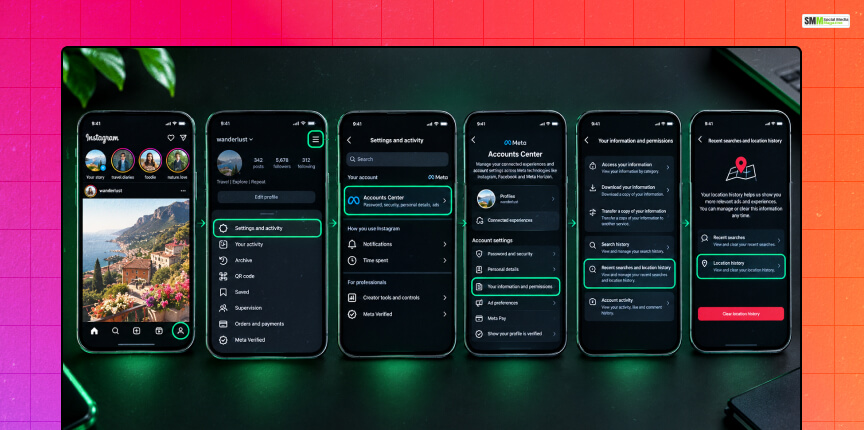
Many creators complete the system-level steps. However, forget that the platform maintains an archive of past geographic footprints inside its internal servers.
In order to achieve ultimate anonymity, you must manually wipe this historical data vault clean.
First, I opened the mobile application and tapped my small profile icon in the bottom-right corner.
After that, I opened the primary system menu by tapping the three horizontal lines in the top-right corner.
From there, I selected Settings and Activity while entering the centralized Meta Accounts Center.
Inside the Accounts Center panel, I scrolled down to the account settings block and selected Your Information and Permissions.
Next, I tapped on the option titled Recent Searches and Location History.
The system provided a dedicated interface allowing me to review my past digital movements.
I selected the option to clear my location history. Consequently, this forced the platform to permanently purge its recorded geographic tracking files from its active advertising profile database.
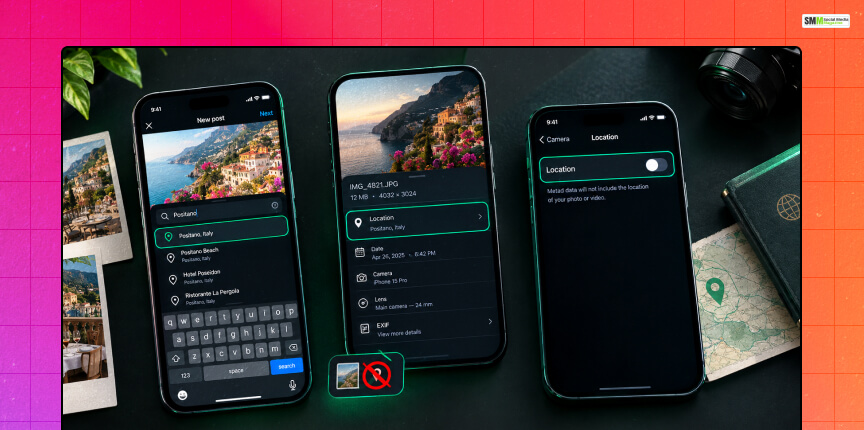
Taking control of your location settings does not mean you have to stop sharing your favorite travel spots or highlighting local businesses.
It simply shifts the power back into your hands, allowing you to choose exactly what you share on a case-by-case basis.
With system-level location tracking fully disabled, you can still manually type a city or restaurant name into the location search bar right before publishing a post or story.
The crucial difference is that the app is no longer reading your real-time GPS coordinates to suggest that spot.
Instead, it is relying strictly on the text you choose to type, keeping your active movements hidden until you decide to share them.
Before you upload an image, remember that your phone’s native camera app often embeds hidden geographic coordinates. This is known as EXIF data, which is put directly into the image file itself.
Even if your social media permissions are turned off, uploading an image with embedded EXIF data can still leak privacy details to online scrapers.
To prevent this, make sure to audit your smartphone’s native camera settings to turn off location tags for photos at the device root level.
Ultimately, executing the steps to turn off background location tracking represents an intentional shift away from continuous corporate surveillance toward absolute digital autonomy.
The modern internet relies on infinite data collection.
However, maintaining your long-term privacy requires knowing how to build clear walls between your physical life and your online profile.
You do not owe any platform a real-time tracking map of your daily footsteps. It is advised that you revoke system-level permissions, clear your historical data vaults, and audit your camera’s hidden metadata.
As a result, you can transform your profile from a data-harvesting tracker back into a safe, creative outlet.
Ultimately, this is one that you control entirely on your own terms.

Sibashree has been into SEO and eCommerce content writing for more than 9 years. She loves reading books and is a huge fan of those over-the-top period dramas. Her favorite niches are fashion, lifestyle, beauty, traveling, relationships, women's interests, and movies. The strength of her writing lies in thorough research backing and an understanding of readers’ pain points.