Audacity Compressor

How To Use The Compressor In Audacity?

Audio compression is one of the most powerful tools in Audacity and one of the easiest to misuse if you don’t understand how it works.

When used correctly, the Audacity compressor makes voices clearer, balances loud and quiet sections, and gives podcasts a professional, broadcast-ready sound.

Whether you’re editing interviews, solo podcasts, voice-overs, or narrative content. Afterall learning how to use compression properly can dramatically improve your listener experience.

In this in-depth guide, you’ll learn exactly how to use the compressor in Audacity. Meanwhile, what each setting means, and how compression fits into a complete podcast production workflow.

Along the way, we’ll also connect compression to real-world podcasting topics such as audacity to normalize audio.

What Is Audio Compression?

Audio compression reduces the difference between the loudest and quietest parts of an audio recording.

Instead of turning everything up or down equally (like normalization), compression selectively reduces loud sounds so that quieter sounds can be heard more clearly.

In podcasting, compression is essential because human speech naturally varies in volume. Compression smooths these variations while making audio easier and more comfortable to listen to, especially on headphones or in noisy environments.

When Should You Use Audio Compression?

When Should You Use Audio Compression

Compression isn’t always necessary, but it’s highly recommended in many situations.

Use Compression When:

  • Speakers vary in volume
  • Some words or laughs are much louder than others
  • Recordings sound thin or inconsistent
  • You’re preparing audio for monetization and ads
  • You want broadcast-quality vocal clarity

For podcasters tracking performance through Apple Podcast analytics, consistent loudness helps improve listener retention and episode completion rates.

Applying The Audacity Compressor Effect (Step-by-Step)

Follow these steps to apply compression correctly:

  1. Firstly, open Audacity and import your audio file (File > Import > Audio)
  2. Secondly, select the entire track (Ctrl + A / Cmd + A)
  3. Thirdly, go to Effect > Compressor
  4. Fourthly, adjust the compressor settings
  5. Fifthly, click Preview to listen
  6. Finally, click OK to apply

Audacity will automatically reduce loud peaks and balance the audio based on your settings.

Understanding The Line Graph In Audacity Compressor

The compressor effect includes a line graph that visually represents how audio levels are reduced.

  • The horizontal axis shows input volume
  • The vertical axis shows output volume

When compression is applied, the line bends downward after the threshold, indicating that loud sounds are being reduced.

This visual feedback helps you understand how aggressive or gentle your compression settings are.
Compressor Settings Explained

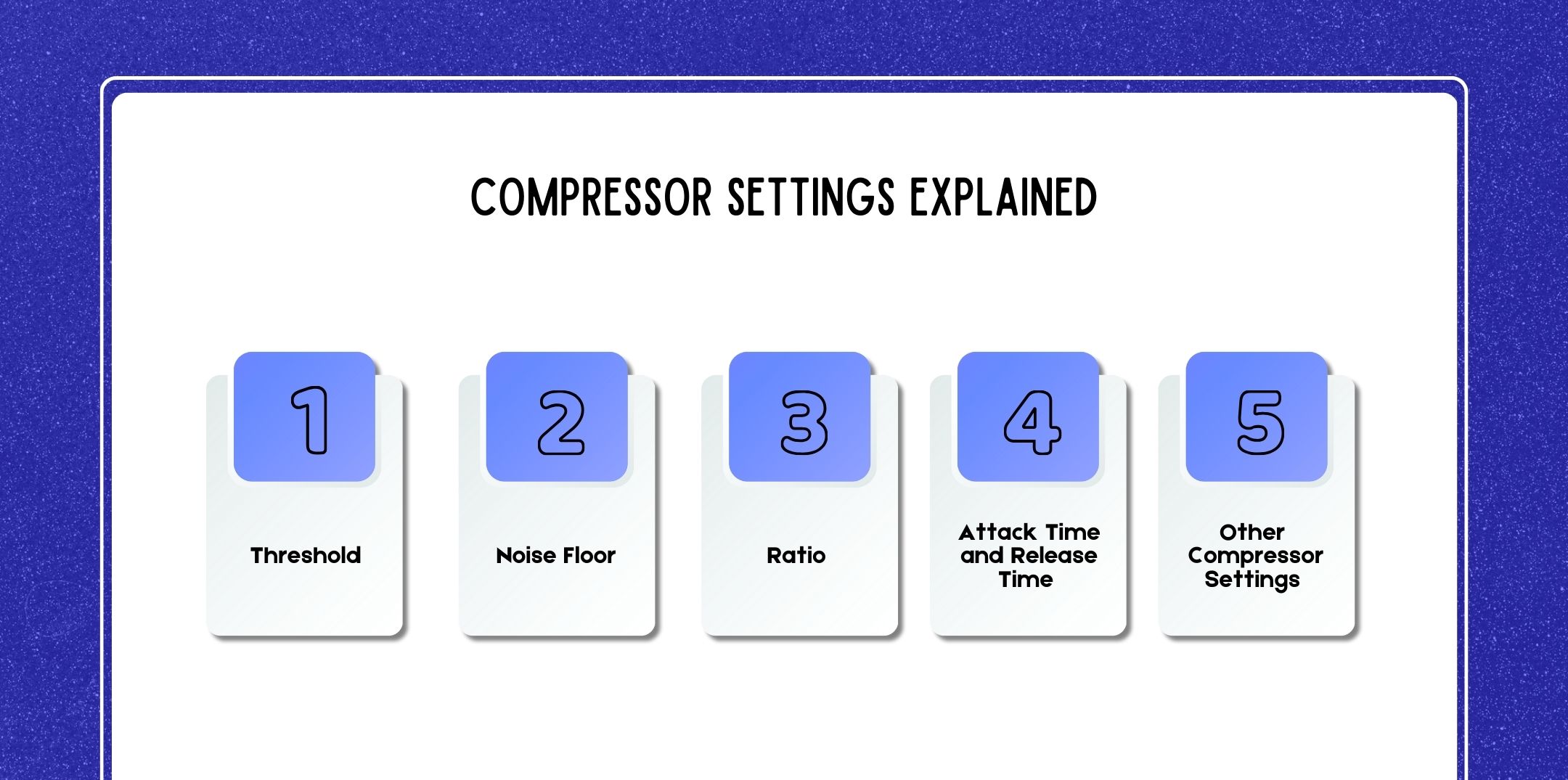
Compressor Settings Explained

Understanding each setting is the key to using compression effectively.

1. Threshold

The threshold determines the volume level at which compression begins.

  • Sounds below the threshold remain unchanged
  • Sounds above the threshold are compressed

Typical Podcast Settings:

  • Threshold: -12 dB to -18 dB

Lower thresholds result in more compression, while higher thresholds apply compression only to louder peaks.

2. Noise Floor

The noise floor sets the level below which audio is ignored by the compressor.

  • Helps prevent background noise from being amplified
  • Especially useful for home or remote recordings

Typical noise floor settings range from -40 dB to -60 dB.

3. Ratio

The ratio controls how much compression is applied once audio exceeds the threshold.

  • 2:1 – Gentle compression
  • 3:1 to 4:1 – Standard podcast compression
  • 6:1 or higher – Heavy compression

Most podcasters find 3:1 or 4:1 ideal for natural-sounding speech.

4. Attack Time And Release Time

These settings control how quickly compression responds.

Attack Time

  • Determines how fast compression starts after the audio exceeds the threshold
  • Short attack times catch sharp peaks

Typical attack times: 0.2 – 1.0 seconds

Release Time

  • Determines how quickly compression stops after audio falls below the threshold
  • Longer release times sound smoother

Typical release times: 0.5 – 1.5 seconds

Balanced attack and release times help avoid pumping or unnatural volume shifts.

5. Other Compressor Settings

Audacity also includes additional options:

  • Make-up gain for 0 dB after compressing: Automatically boosts volume
  • Compress based on peaks: Useful for spoken word
  • Use legacy compressor: For compatibility with older projects

Most professionals disable make-up gain and instead use audacity normalize audio after compression for precise control.

How To Avoid Over-Compressing?

How to Avoid Over-Compressing

Over-compression can make audio sound unnatural, flat, or fatiguing.

Signs Of Over-Compression:

  • Audio sounds squashed or robotic
  • Breathing noises become too loud
  • Background noise increases noticeably

Tips To Prevent Over-Compression:

  • Use moderate ratios (3:1 or 4:1)
  • Avoid very low thresholds
  • Apply noise reduction before compression
  • Always preview your settings

Professional editors at the best podcast editing and production companies prioritize subtle compression over aggressive processing.

Preview Your Settings Before Applying

The Preview button is one of the most important tools in Audacity.

  • Finally, listen with headphones
  • Secondly, focus on loud moments and quiet speech
  • Finally, adjust the threshold and ratio gradually

Previewing prevents irreversible mistakes and helps you train your ears.

Compression And Normalization: The Perfect Pair

Compression And Normalization: The Perfect Pair

Compression and normalization work best together:

  1. Clean audio (noise reduction, EQ)
  2. Apply audacity compressor
  3. Normalize to -1.0 dB or -3.0 dB

This workflow ensures consistent loudness without distortion, ideal for uploading to a podcast website, monetizing via podcast apps for advertising, or preparing for Pandora podcast submission.

How Compression Fits Into A Podcast Workflow?

  • Firstly, use the Time Shift Tool to learn how to move audio in Audacity
  • Secondly, compress each voice track for clarity
  • Thirdly, normalize the final output for consistent loudness
  • Finally, add music, ads, and fades

High-quality audio directly impacts credibility, growth, and long-term earnings—an important factor when considering how much do podcasters make.

Normalize vs Compress vs LUFS: What’s The Difference?

Normalize vs Compress vs LUFS: What’s The Difference?

Understanding the difference between normalization, compression, and LUFS loudness is essential for producing professional podcast audio. Each tool serves a different purpose, and knowing when to use them will dramatically improve your results.

1. Normalize (Peak Normalization)

What it does:

Normalize adjusts the overall volume so the loudest peak reaches a specific level (for example, -1.0 dB).

What it does NOT do:

It does not change the dynamic range or balance loud and quiet parts.

Best use cases:

  • Final loudness adjustment
  • Matching volume across episodes
  • Preparing audio for export

Common settings:

  • Podcasts: -1.0 dB to -3.0 dB

2. Compress (Dynamic Range Compression)

What it does:

Compression reduces the difference between loud and quiet sounds by lowering peaks and raising perceived loudness.

What it does NOT do:

It does not automatically set the final output loudness.

Best use cases:

  • Voice clarity
  • Controlling loud laughs or plosives
  • Making speech more consistent

Common settings:

  • Ratio: 3:1–4:1
  • Threshold: -12 dB to -18 dB

3. LUFS (Loudness Units Full Scale)

What it does:

LUFS measures perceived loudness over time, not just peaks. Many streaming platforms use LUFS standards.

What it does NOT do:

Audacity does not natively normalize to LUFS without plugins.

Common podcast targets:

  • Podcasts: -16 LUFS (stereo), -19 LUFS (mono)

Which Should You Use?

In a professional podcast workflow:

  1. Firstly, clean audio (noise reduction, EQ)
  2. Secondly, apply audacity compressor
  3. Thirdly, apply audacity normalize audio
  4. Finally, check LUFS loudness (optional, via plugins)

This workflow is widely used by best podcast editing and production companies.

FAQs

Here are a few questions and queries on the topic of the Audacity compressor that others have asked and might be helpful for you at the same time.

1. Is Compression Absolutely Necessary For Podcasts?

While not mandatory, compression is highly recommended. Podcasts without compression often sound uneven, forcing listeners to constantly adjust volume. Compression improves comfort and professionalism.

2. Can I Use Normalize Instead Of Compression?

No. Normalization only adjusts peak volume. It cannot balance loud and quiet speech. Compression and normalization serve different purposes and work best together.

3. What Happens If I Skip Normalization?

Skipping normalization may result in episodes that are too quiet or inconsistent across platforms, negatively impacting listener experience and Apple Podcast analytics.

4. Should I Compress Music Differently Than Voice?

Yes. Music usually requires gentler compression or none at all. Voice tracks benefit most from compression, while music is typically lowered manually or via the Envelope Tool.

5. Why Does My Voice Sound Robotic After Compression?

This usually means over-compression. Reduce the ratio, raise the threshold, or lengthen attack and release times.

6. Can Compression Increase Background Noise?

Yes. Compression raises quieter sounds, including noise. As a result, always apply noise reduction before compression.

7. Is The Audacity Compressor Good Enough For Professional Work?

Yes. While many successful podcasters rely on Audacity alone. As shows scale, some creators collaborate with best podcast editing and production companies, but Audacity remains an industry-respected tool.

8. How Do Professionals Avoid Over-processing?

They use subtle settings, preview frequently, and rely at the same time on multiple light processing steps instead of one aggressive effect.

9. Should I Compress Each Clip Or The Full Track?

For podcasts, it’s best to compress each voice track individually before mixing and normalizing.

10. What Compression Settings Are Best For Ads?

Advertisers prefer clear, consistent audio. Also, moderate compression (3:1 ratio) followed by normalization to -1.0 dB is common on podcast apps for advertising.

11. Does Compression Affect Monetization?

Indirectly, yes. However, better audio increases listener trust, retention, and sponsor interest as key factors in how much do podcasters make.

12. Is Lufs More Important Than Peak Normalization?

LUFS is important for platform consistency, but peak normalization is still necessary during editing. As a matter of fact, LUFS checks usually come last.

13. Can I Check LUFS Inside Audacity?

In general, Audacity does not include native LUFS normalization, but plugins can provide LUFS metering.

14. Should I Compress Before Or After Editing?

By all means, do all major edits first (cuts, fades, clip movement). Also, apply compression once the structure is finalized.

15. How Do I Know If My Compression Sounds Good?

In order to listen on headphones, speakers, and a phone. Good compression should feel natural, not noticeable.

16. Will Compression Help My Podcast Get Approved Faster?

While not a formal requirement, professionally processed audio is favored during reviews such as Pandora podcast submission.

More Audacity Tutorials

While you continue improving your audio production skills, explore:

  • Firstly, how to normalize audio in Audacity
  • Secondly, noise reduction and EQ basics
  • Thirdly, fade in and fade out techniques
  • Fourthly, loudness standards for podcasts
  • Finally, exporting audio for multiple platforms

Using Audacity Compressor

In conclusion, learning how to use the compressor in Audacity is a game-changing skill for podcasters and audio creators.

When applied thoughtfully, compression enhances clarity, consistency, and professionalism, at the same time helping your content stand out in a competitive podcasting landscape.

When combined with normalization, smart editing, and strategic distribution, while compression plays a critical role in producing content that listeners and advertisers trust.

author image

Nabamita Sinha loves to write about lifestyle and pop-culture. In her free time, she loves to watch movies and TV series and experiment with food. Her favorite niche topics are fashion, lifestyle, travel, and gossip content. Her style of writing is creative and quirky.

Leave a Reply

Your email address will not be published. Required fields are marked *

Related