Audacity Fade In Fade Out

How To Fade In And Fade Out In Audacity?

Audacity is one of the most popular free audio editing tools in the world, widely used by podcasters, musicians, YouTubers, voice-over artists, and educators.

One of its most essential features is the ability to fade audio in and out smoothly, helping creators produce professional-sounding content without abrupt starts or endings.

Whether you are editing a podcast intro, background music, interviews, or sound effects, understanding how fades and crossfades work in Audacity can dramatically improve your audio quality.

In this in-depth guide, you’ll learn multiple ways to fade in and fade out in Audacity, from basic linear fades to advanced techniques using the Envelope Tool.

We’ll also connect these techniques to real-world podcasting workflows, including topics like Audacity normalizing audio and Audacity compressor.

Meanwhile, how to move audio in Audacity, podcast monetization, podcast apps for advertising, and distribution strategies such as Pandora podcast submission and Apple Podcast analytics.

Understanding Fades And Crossfades

A fade is a gradual change in volume over time:

  • Fade In: Audio starts quietly and gradually increases to full volume
  • Fade Out: Audio starts at full volume and gradually decreases to silence

A crossfade blends two audio clips or tracks together so that one fades out while the other fades in. This is especially useful for:

  • Smooth transitions between music tracks
  • Seamless podcast segment changes
  • Professional-sounding intros and outros

In podcast production and music editing, fades prevent harsh cuts that can distract listeners and lower perceived quality.

Option #1. Linear Fades (Fade In & Fade Out)

Option #1. Linear Fades (Fade In & Fade Out)

Linear fades are the simplest and most used fading method in Audacity. They apply a straight-line volume change across the selected audio.

How To Apply A Linear Fade In?

  1. Firstly, open Audacity and import your audio file (File > Import > Audio)
  2. Secondly, select the Selection Tool (I‑beam icon)
  3. Thirdly, highlight the portion of the audio where you want the fade to occur
  4. Finally, go to Effect > Fade In

Audacity will gradually increase the volume from silence to the original level.

How To Apply A Linear Fade Out?

  1. Firstly, highlight the ending portion of the audio
  2. Secondly, go to Effect > Fade Out

The audio will gradually decrease until it reaches silence.

When To Use Linear Fades?

  • Podcast intros and outros
  • Voice-over beginnings and endings
  • Background music transitions
  • Simple music edits

Linear fades work well in most scenarios, especially when combined with audacity normalize audio to maintain consistent loudness across episodes.

Apply Fade Out To Individual Clips

Audacity allows you to apply fades to individual clips, not just entire tracks.

Steps To Fade A Single Clip

  1. Firstly, click directly on the clip you want to edit
  2. Secondly, drag to select only the portion to be faded
  3. Thirdly, apply Effect > Fade In or Effect > Fade Out

This is particularly helpful when editing interviews or multi-segment podcasts where you need precise control over each audio section.

However, if you’re wondering how to move audio in Audacity, then simply use the Time Shift Tool (↔ icon) to reposition clips before applying fades.

Option #2. Studio Fade Out

The Studio Fade Out effect provides a more natural-sounding fade compared to linear fades. It mimics professional music production techniques by tapering volume more gradually toward the end.

How To Apply Studio Fade Out?

  1. Firstly, select the audio section you want to fade
  2. Secondly, go to Effect > Studio Fade Out

Why Use Studio Fade Out?

  • More polished and broadcast-ready sound
  • Ideal for podcast outros and music endings
  • Prevents the “sudden silence” effect

Many creators prefer this option when producing branded podcasts or working with the best podcast editing and production companies standards.

Option #3. Crossfade

Option #3. Crossfade

Crossfading is essential for smooth transitions between clips or tracks.

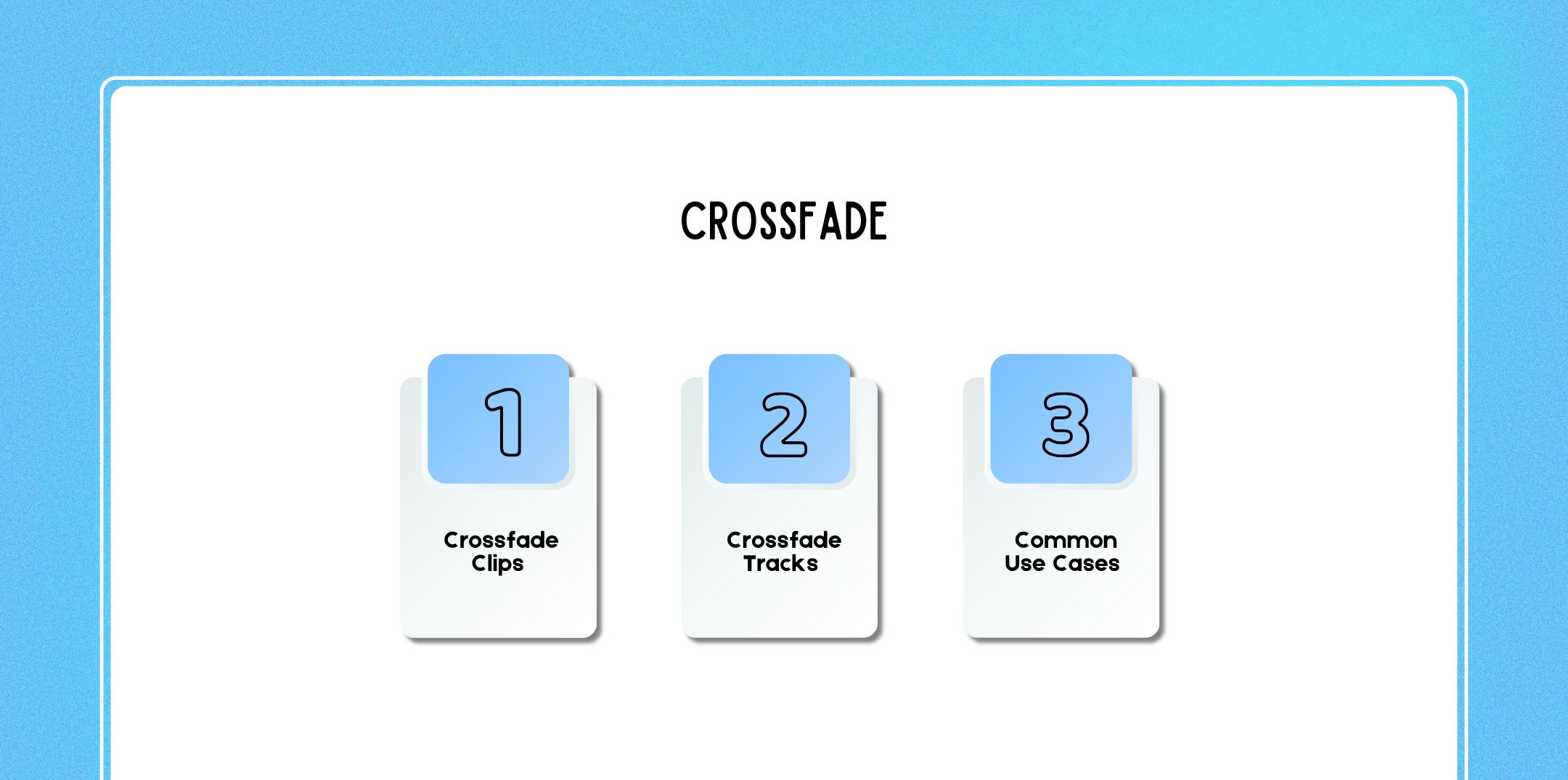
Crossfade Clips

Used when two clips exist on the same track.

Steps:

  1. Firstly, place two clips so they slightly overlap
  2. Secondly, select the overlapping area
  3. Thirdly, go to Effect > Crossfade Clips

Audacity automatically fades one clip out while fading the next clip in.

Crossfade Tracks

Used when audio exists on separate tracks.

Steps:

  1. Firstly, overlap the tracks using the Time Shift Tool
  2. Secondly, select the overlapping sections on both tracks
  3. Thirdly, go to Effect > Crossfade Tracks

Common Use Cases

  • Transitioning between podcast segments
  • Blending background music with narration
  • Smoothing music playlists or DJ-style mixes

Crossfades are particularly useful for podcasters monetizing their content through podcast apps for advertising, where clean transitions matter for listener retention.

Option #4. Use The Envelope Tool

The Envelope Tool gives you precise, manual control over volume changes.

How To Use The Envelope Tool?

  1. Firstly, select the Envelope Tool (two white triangles icon)
  2. Secondly, click on the audio track to add control points
  3. Thirdly, drag points up or down to adjust volume over time

Benefits Of The Envelope Tool

  • Custom fade curves
  • Dynamic volume automation
  • Ideal for background music ducking

This method pairs perfectly with tools like Audacity Compressor, allowing you to balance vocals and music naturally without overprocessing.
Advanced Fading Techniques

Advanced Fading Techniques

For creators who want studio-quality results, Audacity offers several advanced workflows:

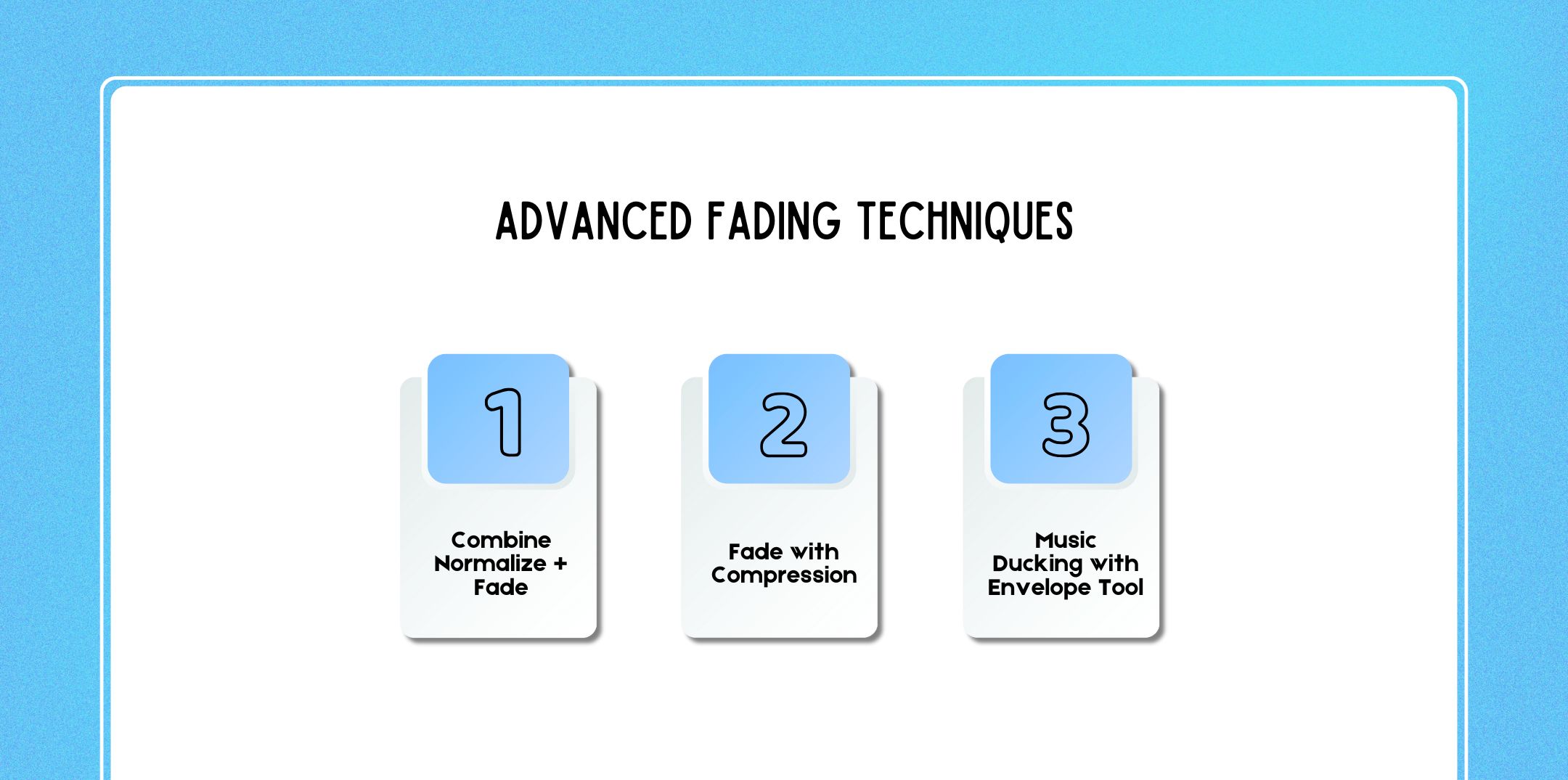
Combine Normalize + Fade

  • Firstly, use Effect > Normalize before fading
  • Secondly, ensures consistent loudness
  • Thirdly, prevents uneven fade levels

This is especially important for podcasters analyzing performance using Apple Podcast Analytics, where consistent audio quality impacts listener retention.

Fade With Compression

  • Firstly, apply the Audacity compressor to smooth volume peaks
  • Secondly, add fade-ins and fade-outs afterward
  • Thirdly, produces professional broadcast-level audio

Music Ducking With Envelope Tool

  • Firstly, lower background music during speech
  • Secondly, raise the music volume during pauses
  • Thirdly, a common technique in commercial podcast production

Tips For Effective Fading And Crossfading

  • Avoid overly long fades unless stylistically required
  • Always listen with headphones to catch artifacts
  • Combine fades with compression and normalization
  • Keep transitions consistent across episodes
  • Save presets for repeatable podcast workflows

Professional fades can directly impact your podcast’s perceived value important when thinking about how much do podcasters make and how advertisers evaluate your show.

FAQs

Here are a few questions and queries on the topic of audacity fade in fade out that others have asked and might be helpful for you at the same time.   

1. Is fading necessary for podcasts?

Yes, fading is extremely important for podcasts. Fade-ins prevent sudden loud sounds that may startle listeners, while fade-outs create a natural ending that feels intentional and professional.

Podcasts with smooth fades often perform better in listener retention, which can indirectly affect monetization and insights seen in Apple Podcast analytics.

2. Can I fade multiple clips at once in Audacity?

Yes. You can select multiple clips or tracks at the same time and apply Fade In, Fade Out, or Crossfade effects.

This is useful when editing batch podcast episodes or music segments for consistency across a show.

3. What’s better: linear fade or studio fade out?

A linear fade applies a straight volume reduction and works well for spoken content.

Studio Fade Out uses a more natural curve and is better for music, podcast outros, and branded segments. Many professionals prefer Studio Fade Out for polished productions.

4. Does fading affect audio quality?

No, fading does not degrade audio quality when applied correctly. In fact, when combined with Audacity normalize audio and Audacity compressor, fading improves perceived sound quality and loudness balance.

5. How long should a fade in or fade out be?

For podcasts, fade-ins typically range from 1–3 seconds, while fade-outs are usually 3–6 seconds. Music-heavy intros or outros may require longer fades depending on style.

6. Can I customize fade curves in Audacity?

Yes. While standard fade effects use preset curves, the Envelope Tool allows you to manually design custom fade shapes, ideal for advanced control and background music ducking.

7. How do I fade background music under voice?

Use the Envelope Tool to lower the music volume during speech and raise it between segments.

This technique is common in commercial podcasts and is often paired with the Audacity compressor to maintain vocal clarity. Audacity

8. Can I undo a fade effect?

Yes. Audacity allows unlimited undo actions using Ctrl + Z (Windows) or Cmd + Z (Mac), making it easy to experiment with different fade styles.

9. Why does my fade sound uneven?

Uneven fades usually occur when audio isn’t normalized or compressed. Apply Audacity normalize audio before fading and use compression to smooth volume peaks.

10. Is Audacity good enough for professional podcast editing?

Absolutely. Many creators start with Audacity and produce high-quality podcasts. As shows grow, some creators later work with best podcast editing and production companies, but Audacity remains a powerful tool for independent podcasters.

11. How do fades impact podcast monetization?

Smooth fades and transitions improve listener experience, which helps with audience growth. A polished show is more attractive to advertisers on podcast apps for advertising, influencing how much podcasters make over time.

12. Do I need fades when submitting to podcast platforms?

While not mandatory, platforms like Spotify, Apple Podcasts, and Pandora podcast submission reviewers favor professionally edited audio. Clean fades help your podcast meet platform quality expectations.

13. Can fades help with music licensing issues?

Fades don’t replace licensing, but smooth fade-outs can shorten music usage and help creators stay within fair-use guidelines for intros and outros.

14. Should I fade every clip in my podcast?

Not every clip needs fading. Focus on episode openings, endings, music transitions, and segment changes. Overusing fades can make audio feel unnatural.

More Audacity Tutorials

If you’re serious about podcasting and audio production, consider learning:

  • Firstly, the audacity noise reduction techniques
  • Secondly, EQ and compression for voice clarity
  • Thirdly, multitrack podcast editing workflows
  • Fourthly, preparing audio for Pandora podcast submission
  • Finally, optimizing audio for different podcast platforms

Pairing strong editing skills with a professional podcast website, smart distribution, and analytics tracking can help you grow your audience and unlock new monetization opportunities.

Fading In And Fading Out

Mastering how to fade in and fade out in Audacity is a foundational skill for anyone working with audio.

However, from simple linear fades to advanced envelope automation and crossfades, these techniques help your content sound polished, professional, and listener-friendly.

Whether you’re editing your first episode or scaling a monetized podcast, proper fading is a small detail that makes a big difference.

author image

Nabamita Sinha loves to write about lifestyle and pop-culture. In her free time, she loves to watch movies and TV series and experiment with food. Her favorite niche topics are fashion, lifestyle, travel, and gossip content. Her style of writing is creative and quirky.

Leave a Reply

Your email address will not be published. Required fields are marked *

Related