How Long Can A Reel Be On Instagram In 2026? What 10 Years On This Platform Has Taught Me?
sibashree bhattacharya, 15 hours ago
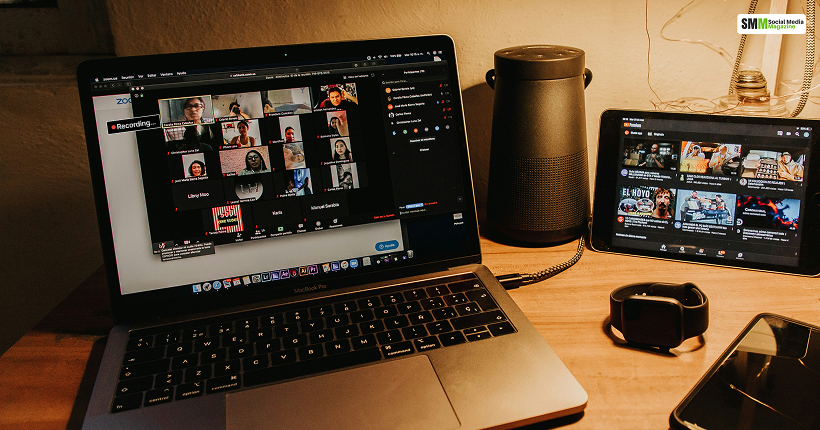
I have been working in social media for over a decade now.
The one skill that has quietly become non-negotiable in that time is how to record a Zoom meeting properly.
I record all of it. Also, no point in hiding that I have made basically every mistake you can make in recording Zoom meetings.
I have lost a record as I forgot to hit “record to the cloud” instead of “record locally.”
Again, there was an ongoing meeting, and I had asked the client, mid-meeting, whether I had told them I was recording it.
So, 10 years down the line, I thought of writing a guide about how Zoom recording actually works.
Here, I have also discussed what the newer AI tools add on top of it, what’s changed recently, and what people are still griping about in the forums.
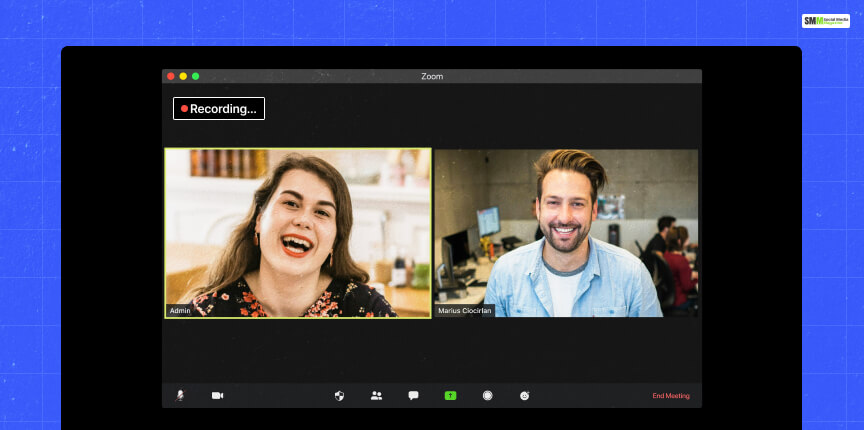
Zoom always has a built-in recording. The two native choices for recording are cloud or local.
I use both recording methods based on the meeting.
Local recording is the default setting for internal calls. When you choose this option, it saves the meeting video straight to the hard drive of your computer.
It works on free accounts with host permissions and gives you immediate access, with storage limited only by your hard drive.
However, you will have to share the files manually afterward.
Furthermore, local recording has the backing of Zoom’s own documentation as it is a default feature for all standard accounts. So, in this setting, the video gets saved on your device automatically.
Moreover, in local recording, you do not need to configure any settings or wait for anything.
I use cloud recording if I need to share the link to the video with the client on the same day.
The recordings will appear in the portal after processing, and you can share the link to the video easily on the same day.
However, you will need a paid license and administrator enablement if you want to use cloud recording.
Also, there are certain limitations to switching to cloud recording.
So, cloud recording is a paid option that comes with a Pro or Business Plan. Also, the videos are saved to Zoom’s servers.
You can view, share, and download all these recordings that you have recorded from mobiles, Zoom Rooms, and desktops.
However, keep the processing time in mind, as it is worth knowing before you promise a client a same-hour delivery.
That processing wait has burned me before on a tight turnaround.
| Feature | Local Recording | Cloud Recording |
|---|---|---|
| Cost | Free with host permissions | Requires Paid Pro/Business/Education License. |
| Storage location | Your device’s hard drive | Zoom’s servers |
| Storage limit | Limited only by hard drive space | 10GB per Pro license |
| Access speed | Immediate | 30 minutes to several hours processing |
| Sharing | Manual file transfer | Shareable link, password-protectable |
| Works with breakout rooms | Yes | No |
| File formats | MP4 video, M4A audio, TXT transcript (if enabled) | MP4 video, M4A audio |
| Retention | Unlimited (your device) | Auto-deletes after 180 days by defaul.t |
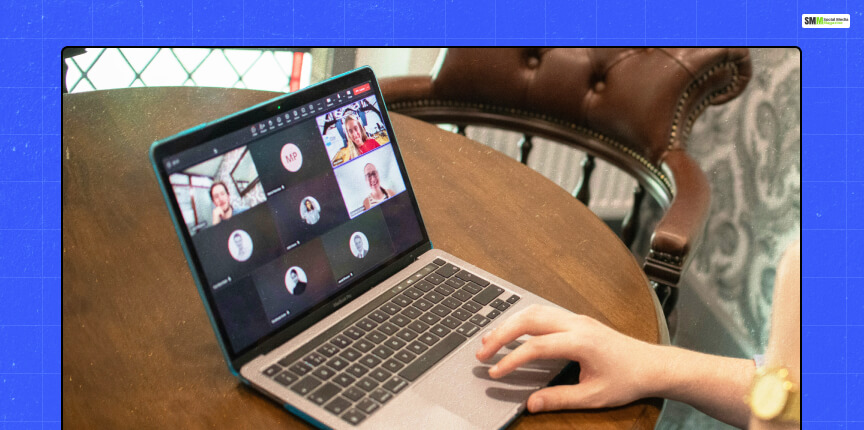
The procedure for recording is the same for local recording and cloud recording.
If I do not choose the Record to the Cloud option, the local recording will start automatically.
I glance at this every single time before I start talking, because I have had calls where I clicked too fast and nothing actually started.
However, if you are doing cloud recording, cloud recordings show up later in the web portal under “Recordings.”
Having explained the entire process, I must admit that recording a Zoom video can get confusing.
Zoom’s own support team says recording is the single topic they field the most questions about, ahead of more technical issues like firewall traversal or encryption.
So, it’s not just you! We all have fumbled, and we continue to do so.
The file formats will be the same in both recording types. It will generate the video output in the standard MP4 format and the audio output in the M4A format.
So, there is nothing proprietary, and the recordings drop straight into whatever editing software I am using.
Also, early in my career, I had picked up one habit. If I want the recordings to stay locked on one person rather than whoever happens to be talking, I pin their video first.
If you follow the guidance of Zoom, then you will find that it is the right move.
When you pin a participant, the recording focuses on them only. Also, if you choose the active speaker mode, the recording will follow whoever is talking.
When you record a Zoom meeting, it is just a video file sitting on your device.
It is not a searchable file. Also, it does not have chapters or any summary.
So, if you only refer to a Zoom recording, it alone will not help you much when you need to track down a specific decision weeks later.
You will have to scrub through hours of that video recording to find the exact reference point.
I would like to admit that I have done that exact scrub more times than I would like to admit.
One of them was at 11 PM when I was trying to recall which 40-minute call had the approval of the client.
So, specifically, there have been some gaps or some areas where native recordings fall short.
| The Gaps | The Practical Problems |
|---|---|
| No Automatic Action-Item Extraction | Nothing Flags Who Agreed to Do What |
| No Chapters | No Segmentation to Jump between Discussions |
| No Search Across Multiple Meeting Recordings | Every Meeting Recording Sits in Silo |
| Cloud Storage Limits | Recordings will Vanish After 180 Days if You Do Not Move Them |
To solve these problems with native recordings, Zoom now has built-in AI Companion.
This AI companion now adds “Smart Recording Chapters” and “Meeting Summaries.”
However, if you are a free user, you will have limited access to these AI features. The full capabilities are reserved for paid tiers.

Somewhere in the last couple of years, a whole category of tools showed up that sits on top of native Zoom recording instead of replacing it.
Tools like Read AI connect to your Zoom account and hand you a processed report after the call instead of a raw file you have to dig through yourself.
According to Read AI’s own guide, this kind of tool is aimed at distributed teams dealing with the following issues.
All these problems were amplified for me as I had to struggle with client calls across three time zones for some weeks.
The reports usually have:
Moreover, some tools compress a long call into a short highlight reel so you are not rewatching the whole thing.
There is another quiet option that I use. It skips the visible “recording bot” some AI tools drop into your meeting.
Instead, it captures audio and video directly from a participant’s device rather than joining the meeting as a visible bot.
I have used this for smaller, more sensitive conversations where a visible bot icon in the participant list feels like it changes the temperature of the room.
Even then, participants should have the notification of the call recording, regardless of which recording method is used. Bot or no bot, that part doesn’t change!
This is where I have seen people, including past-me. get sloppy, and it is genuinely not worth the risk.
In the US, consent requirements vary by state.
In the 39 one-party consent states, only the person recording needs to consent.
However, 11 two-party consent states – California, Connecticut, Delaware, Florida, Illinois, Maryland, Massachusetts, Michigan, Montana, New Hampshire, Pennsylvania, and Washington – require everyone on the call to consent before recording begins.
The violations carry civil and criminal penalties.
The complication I run into constantly is that my calls almost never stay within one state.
When participants are in different states, the most restrictive law governs.
So a host in a one-party consent state with even one participant joining from a two-party state needs consent from everyone.
And for international clients, you have to abide by GDPR for EU participants. The location of the host organization does not matter here.
So, you will require transparent privacy notices and fair consent mechanisms.
My own rule now, after enough close calls, is to say it out loud at the top of every meeting.
I also put it in the calendar invite too. The on-screen recording indicator is nice, but it is not a substitute for actually telling people.

Zoom pushes updates to its Workplace app constantly, and a few recent ones directly touch recording.
As of the July 2026 release cycle, Workplace 7.1 added video thumbnail capture in local recordings and expanded screen capture management support, alongside retiring the “AI Companion” name in favor of newer branding.
That same cycle changed how captions and transcripts work.
You cannot save In-meeting captions any longer during the meeting.
It is replaced by the option to save the full transcript instead, with captions staying on as a live accessibility feature and transcripts serving as the permanent record of what was said.
As someone who leans on transcripts constantly for pulling quotes into content, I like this split. It is clearer than the old blurred-together version.
Enterprise accounts also picked up finer control over recording via Microsoft Purview.
Organizations with a Microsoft Purview account can now apply sensitivity labels when scheduling a meeting.
The admin-configured policies per label control whether cloud recording, automatic recording, transcripts, and other settings are enabled or disabled.
And that label stays visible to attendees the whole way through. For anyone managing sensitive client work, that is a real lever, not just a compliance checkbox.
| Date (2026) | Update | Source |
|---|---|---|
| March 24 | Zoom Workplace 7.0 releasedDynamic Gallery for up to 49 ParticipantsBrowser Tab Sharing | Northwestern IT |
| March 30 | AI Companion Expanded with Meeting SummaryIn-Meeting Questions, Smart Recordings (Chapters/Highlights) | Northwestern IT |
| July 2026 | Workplace 7.1: AI Companion RenamedVideo Thumbnails Added to Local RecordingsCaptions/Transcripts Split into Separate Features | Releasebot |
| July 2026 | Sensitivity Labels (via Microsoft Purview) Allow Per-Meeting Control of Recording, Transcript, and Summary Settings | Releasebot |
| August 26, 2026 (scheduled) | New Zoom Web Interface Becomes Permanent, Replacing the Option to Switch Back to the Old Layout | University of Michigan ITS. |
Note: dates reflect institutional IT bulletins and release-tracking sites reporting on Zoom’s rolling update cadence; Zoom doesn’t publish a single canonical “recording changelog.”
So specifics can shift a bit between an initial announcement and the general rollout.
I like checking Zoom’s community forum every so often, partly out of habit and partly because it is a good gut-check on whether an issue I am seeing is just me.
A representative thread from January 2026 involved a recording where the entire video, not just one person’s feed, was glitching, flickering, and turning green.
It was also pixelating every few seconds across everyone’s camera feed, with the issue becoming somewhat more stable during screen sharing but still not fully resolved.
It got marked solved eventually, which is pretty typical of what I see there.
Most recording complaints trace back to local network conditions.
It is an outdated app version, or an overloaded device, rather than Zoom’s platform being broken.
Zooming out from that one thread, the broader pattern across the university IT bulletins I have come across is that cloud-recording complaints tend to cluster around processing delays and recordings not showing up where expected.
It is not the recording itself failing outright. That lines up with the “several hours” processing window Zoom itself warns about for longer sessions.
| If you… | Consider… |
|---|---|
| Are on a free Zoom account and just need a personal backup | Local recording |
| Need to share a link with people who weren’t on the call | Cloud recording (paid plans) |
| Use breakout rooms regularly | Local recording (cloud can’t capture breakouts) |
| Run 10+ meetings a week and need to find things later | An AI assistant layered on top of native recording |
| Are in a regulated industry with data-sensitivity requirements | Cloud recording with sensitivity labels (Purview-enabled accounts) |
| Want to avoid a visible “recording bot” in smaller meetings | A bot-free, device-based recording tool |
Ten years into doing this professionally, my honest take is that native Zoom recording is still the right starting point for almost everyone.
It is built in, free at the local level, and spits out standard MP4/M4A files that play nice with any editing or transcription tool I throw at them afterward.
It genuinely falls short in making sense of the recording.
That is exactly the gap Zoom’s own AI Companion updates and third-party assistants are both racing to close.
Whatever setup you land on, the two habits I never skip are the same ones I would tell anyone starting out.
Actually check for that recording indicator before you start talking, and notify everyone about the recording.
Not because Zoom makes you, but because in more places than people realize, the law does.

Subham Kamila is a published author and Senior Digital Marketing executive On Viacon marketing and technology. He’s passionate about SEO, Social Media Marketing, Content Marketing, SMM, Google Adwords. He is like to inspire with google, flipkart, amazon, Ahrefs of their marketing strategy.

sibashree bhattacharya, 15 hours ago
sibashree bhattacharya, 19 hours ago

sibashree bhattacharya, 3 days ago