Creator Vs Business Account Instagram: The Ultimate 2026 Strategic Blueprint
sibashree bhattacharya, 5 hours ago
Google Slides does not have any drag-and-drop audio track as you would get in a video editor.
Also, the workflow is scattered across Drive, Slides, and the formatting sidebar is easy to miss.
In this article, I am walking through exactly how to add audio to Google Slides, and the formats, permissions, and troubleshooting steps I wish someone had told me the first time I tried this for a client launch.
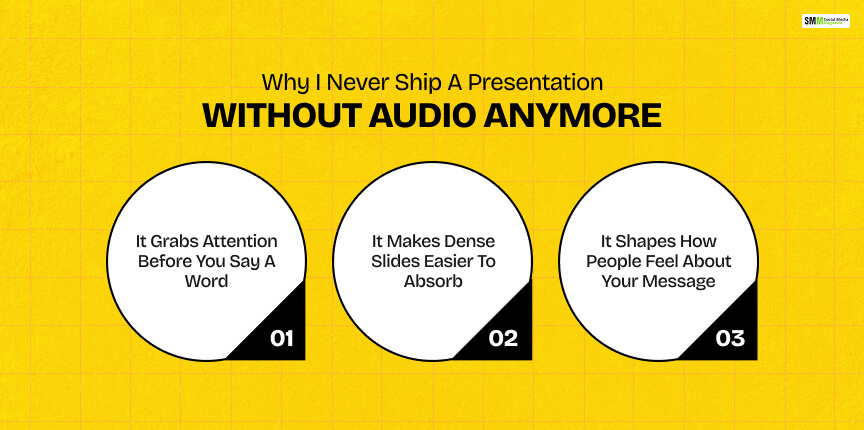
Early in my career, I treated audio as decoration. Now I treat it as a retention tool. Here’s what changed my mind.
The right track sets a tone before your audience reads a single bullet point.
So, big brands lean on the use of music deliberately. For example, Apple is well known for pairing its keynote presentations with music that keeps audiences engaged from start to finish.
Furthermore, one WWDC keynote used upbeat music specifically to showcase a product feature.
I use the same logic on a much smaller scale. A soft intro track while people are still finding their seats (virtual or physical) does a lot of quiet work.
If your deck leans text-heavy, audio can carry some of the cognitive load.
Listening generally requires less mental effort than reading, which makes narrated or music-backed content easier for an audience to process.
That is a genuinely useful thing to know if you are presenting to a room that is half paying attention on their phones (we have all been that audience too).
Research, including the Music and the Mind Cover Story by the American Psychological Association, shows music influences how people perceive information and form memories.
So, adding music or voice to a presentation can make it feel more immersive, lively, or emotionally resonant.
In practice, this means the tempo of your background track is basically doing tone-setting work. So, you can use upbeat music for a product launch and slower ambient sound for something reflective or data-heavy.
Google Slides is picky.
It does not support every audio format the way a video editor does, and most of the “why won’t my audio play” problems I see from other creators trace back to this table.
| Format | Supported in Slides? | Notes |
|---|---|---|
| MP3 | Yes | Compressed format that loads quickly and plays consistently across browsers and devices |
| WAV | Yes | Higher quality but larger file size. It is fine for shorter clips or narration. |
| AAC / M4A | No | Silently rejected. The file won’t even show up in the Insert dialog |
| OGG / FLAC / WMA | No | Same silent rejection issue You need to convert before uploading. |
If your source audio is in anything other than MP3 or WAV, convert it first.
I usually clean up and export my voiceovers in Descript before I ever touch Google Drive, since it lets me trim dead air and normalize volume in one pass rather than fighting with format issues later.
One more thing is worth flagging here.
Slides only allows one audio file per slide, though you can use a different file on every slide in the deck.
There is no built-in “soundtrack for the whole presentation” toggle. You fake that with autoplay and a playback setting I will cover in the next section.
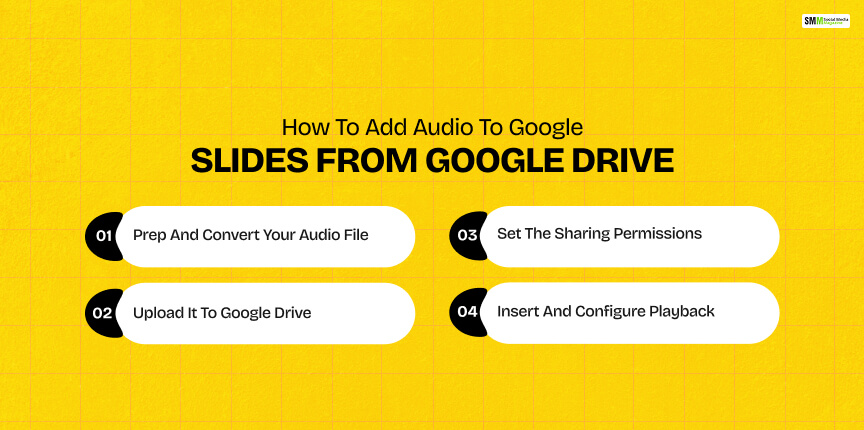
This is the method I use for background music, and it is the most reliable of the four approaches.
Pick your track from royalty-free libraries like the YouTube Audio Library or Free Music Archive.
These are safe bets if you do not want copyright headaches.
Make sure it is exported as MP3 or WAV before you go any further.
Sign in to Google Drive.
Hit New, File upload, and select your audio file.
Next, give it a second to finish uploading before moving to the next step. Inserting a file mid-upload is a common cause of the dreaded “audio cannot be played” error.
This is the step almost everyone skips, and it is the one that causes the most support tickets.
Right-click the file in Drive, choose Share, change access from Restricted to Anyone with the link, and set the role to Viewer.
If you skip this, the audio plays fine for you (because you own the file) but goes silent for anyone else viewing the deck.
Back in Google Slides, select the slide, then go to Insert → Audio, pick your file from Drive, and hit Insert.
A speaker icon appears on the slide. Click it to open Format options on the right sidebar, where you control the following elements.
This method works. However, it is clunkier, and I only reach for it when I need a specific track that isn’t easy to source as a downloadable file.
Find your track, confirm it is licensed for use, and copy the link.
In Slides, go to Insert → Link, paste the URL, and hit Apply.
When you click the linked area during your presentation, it opens the source page in a new tab, where you manually hit play.
Streaming links do not embed the way a Drive-hosted file does.
Pasting a Spotify or Apple Music link into a slide just opens that song in the respective web or desktop app.
It won’t play natively inside your presentation, and depending on your account status, you might only get a short preview clip instead of the full track.
I generally avoid this method for anything client-facing since it depends on the audience having their own active subscription.
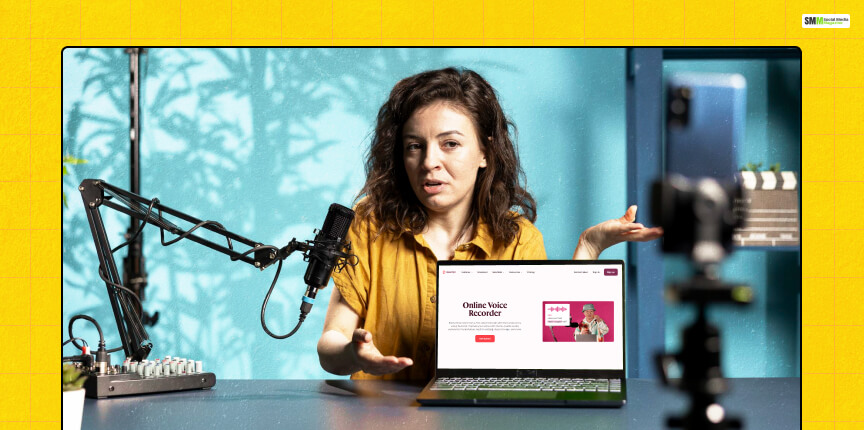
Narration turns a static deck into something people can watch on their own time and still understand. It is genuinely useful for async content, which is most of what I produce now.
Record your narration before touching Slides.
I use a dedicated recorder (Descript’s voice recorder is my go-to) so I get clean audio I can export as MP3 or WAV without extra conversion steps.
Follow the same Drive upload-and-share steps from earlier.
Once the audio file is uploaded, set sharing to “Anyone with the link,” then Insert → Audio on the relevant slide.
Preview the whole deck in Slideshow mode before you send it anywhere, since narration timing issues are much easier to catch before your audience does.
Sometimes the “audio” you want is actually a clip from a video. It is a testimonial, a product demo, a meme sound. Embedding a YouTube video is the workaround.
Copy the share link from YouTube, then in Slides go to Insert → Video → YouTube.
Next, paste the link, and hit Insert.
By default, the video plays on click as you advance slides. You can switch it to autoplay in the Video playback dropdown.
One caution here!
If the video owner has copyright restrictions in place, it may not play back reliably inside someone else’s presentation.
So this method works best with your own uploads or clearly licensed content.
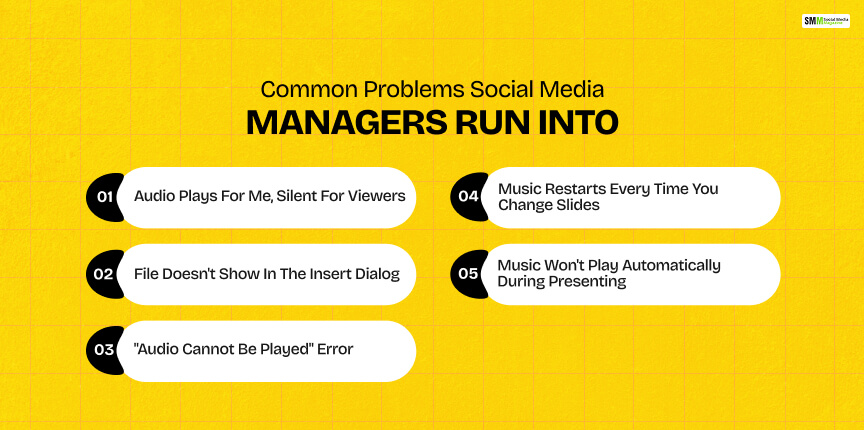
I have either hit these myself or watched a client hit them right before a live pitch. Here is the troubleshooting table I keep bookmarked.
| Problem | Likely Cause | Fix |
|---|---|---|
| Audio plays for me, silent for viewers | Drive sharing set to Restricted | Set the file to “Anyone with the link – Viewer.” |
| File doesn’t show in the Insert dialog | Wrong format (AAC, M4A, OGG, FLAC, WMA) | Re-export as MP3 or WAV. |
| “Audio cannot be played” error | File still uploading, or you only have View access to someone else’s Drive folder | Wait for the upload to finish, or ask the owner to share it with edit/view access. |
| Music restarts every time you change slides | “Stop on slide change” is checked | Uncheck it in Format options → Audio playback. |
| Music won’t play automatically during presenting | Playback set to “on click.” | Switch to “Automatically” in Format options. |
The single biggest cause of playback failures, in my experience and echoed across creator forums, is Drive permissions rather than anything wrong with the audio file itself.
Before I send any client deck, I open it in an incognito window logged out of my own account. If the audio does not play there, it won’t play for the audience either.
Audio in Google Slides is more manual than it should be. There is no drag-and-drop, no native recorder, and a permissions step that trips up even experienced teams.
However, when you have converted the Google Slides to MP3/WAV, uploaded it to Drive, and set sharing to “Anyone with the Link,” then you can insert audio.
The entire process takes less than 5 minutes per deck.
Once the audio is inserted, the presentation changes magically, especially in terms of audience impact.
So, those five minutes are one of the highest-leverage edits you can make before you hit present.

Sibashree has been into SEO and eCommerce content writing for more than 9 years. She loves reading books and is a huge fan of those over-the-top period dramas. Her favorite niches are fashion, lifestyle, beauty, traveling, relationships, women's interests, and movies. The strength of her writing lies in thorough research backing and an understanding of readers’ pain points.

sibashree bhattacharya, 5 hours ago

sibashree bhattacharya, 22 hours ago