8 Tips For Staying Safe And Secure On Twitter
Nabamita Sinha, 1 day ago
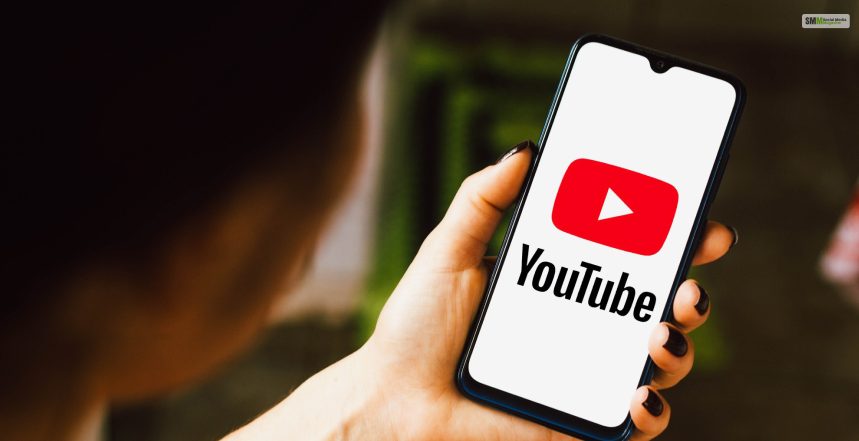
YouTube Shorts are short-form videos that are less than 60 seconds long and are designed to compete with other platforms like TikTok and Instagram Reels. However, not everyone is a fan of YouTube Shorts. Many find them annoying, distracting, or irrelevant.
Therefore, if you are one of those users who want to learn how to disable YouTube Shorts, you have done a marvelous job clicking on this link!
Unfortunately, there is no official way to turn off YouTube Shorts in your settings. But there are some workarounds that can help you hide or remove YouTube Shorts from your feed.
However, doing so will prevent you from earning revenue from YouTube Shorts Monetization and starting a successful YouTube channel.
In this post, we will show you how to disable YouTube Shorts on your computer, phone, or tablet and explain the pros and cons of each method.
| YouTube Shorts Size And Specs • Length – Up to 3 minutes total • Orientation – Vertical only • Aspect Ratio – 9:16 (Standard for mobile viewing) • Resolution – 1920 x 1080 pixels recommended • Minimum Resolution – 600 x 1067 pixels • File Size – Up to 2GB • File Formats Supported – .MP4 and .MOV • Captions – Optional, it is recommended for accessibility and engagement • Thumbnails – Not needed (YouTube auto-generates one), but you can upload your desktop. • Audio – You can use your original audio or add any YouTube music. |
The easiest and most effective way to learn how to disable YouTube Shorts is to use a browser extension. All you must do is ensure that it can block or hide YouTube Shorts from your feed. There are several browser extensions that can do this.
Moreover, they are compatible with different browsers like Chrome, Firefox, Microsoft Edge, Opera, and Safari as well. However, they might decline your YouTube Presence.
Some of the best browser extensions that will help you on “how to disable YouTube Shorts” are:
This extension can block YouTube Shorts from the home page, the subscriptions page, and the explore page of the YouTube app and website.
It also has an option to block YouTube Stories – another type of short-form video. It appears at the top of the YouTube app and website.
This extension is available for Chrome and Edge browsers. Therefore, download the YouTube Shorts Block extension now!
This extension can also block YouTube Shorts from the home page, the subscriptions page, and the explore page of YouTube. Moreover, it also has an option to block YouTube Stories, as well as YouTube Music – YouTube’s music streaming service.
This extension is available for Chrome and Mozilla Firefox browsers. Therefore, download the ShortsBlocker extension now! Moreover, you can download the ShortsBlocker Mozilla extension as well for the Mozilla Firefox browser!
This extension can hide YouTube Shorts from the home page, the subscriptions page, and the explore page of YouTube. In addition, it also has an option to hide YouTube Stories, as well as YouTube Music.
This extension is available for the Firefox browser. Therefore, download the Hide YouTube Shorts extension now!
This extension can block YouTube Shorts from the home page, the subscriptions page, and the explore pages. This applies to both the YouTube app and website. Moreover, it also has an option to block YouTube Stories, as well as YouTube Music.
This extension is available for the Safari browser, but it is not free. It costs $1.99 per month or $9.99 per year. Therefore, download the BlockYT Safari Extension for iPhones, iPads, and MacBooks now!
The benefits of using a browser extension to disable YouTube Shorts are:
The drawbacks of using a browser extension to disable YouTube Shorts are:
Another way to understand how to disable YouTube Shorts is to use the built-in option that YouTube provides. Enabling this option will allow you to hide the Shorts section from your home page.
This option tells YouTube that you are not interested in seeing Shorts. Therefore, it removes the Shorts section from your home page for 30 days.
However, this option is not permanent, and the Shorts section will reappear after 30 days. Moreover, you can repeat the process to hide the Shorts section again, but you may find it tedious and inconvenient. Therefore, we wish there were a way to disable YouTube Shorts from the YouTube Creator Studio!
Therefore, to use this option, follow these steps:
The benefits of using this option to disable YouTube Shorts are:
The drawbacks of using this option to disable YouTube Shorts are:
If you use the YouTube app on your phone or tablet, you will not have the option to hide Shorts.
However, you can still hide specific Shorts from your feed by using the “Not Interested” option. This option tells YouTube that you are not interested in seeing a particular Short and removes it from your feed.
However, this option is not very effective, as it only removes one Short at a Time. Moreover, it does not prevent other Shorts from appearing in your feed.
Therefore, to use this option to learn how to disable YouTube Shorts, follow these steps:
The benefits of using this option to disable YouTube Shorts are:
You can use this option on both your phone and your tablet by using the YouTube app.
The drawbacks of using this option to disable YouTube Shorts are:
In case Shorts videos take over your feed, you can actually train the YouTube algorithm to display fewer of them.
The more you repeat it, the more YouTube’s algorithm notices what you want and do not want to watch, and will lower the frequency of Shorts that you watch.
If you view YouTube on a computer in the first place, use the desktop version as it is less intrusive with fewer interruptions by Shorts.
Android: You can install an older version of the YouTube app (prior to Shorts release) to eliminate the feature permanently.
Steps:
Warning: Not for all because it might make the app insecure and ruin newer features.
You can also customize even further what you view on YouTube with the algorithm. You can even get YouTube to display fewer Shorts using the in-app feedback controls.
How to do it:
It will not eliminate Shorts but curtails their visibility on your stream. You will see fewer rows of Shorts and more regular video recommendations in the future.
If you are already a content creator and creating videos for YouTube Shorts, is one of the things that you can create.
So, whether you are a content creator, a brand, or even a marketer, YouTube Shorts is a vital element of your content strategy to boost your visibility and engagement on the platform.
YouTube videos are placed in a couple of places on the platform that can be easily viewed on the platform by the audience. And once you start scrolling through one reel, it is like a blackhole that will suck you in.
This is where, if you are a content creator, marketer, or brand, you can use YouTube Shorts to their advantage to reach a larger audience.
Due to the popularity of TikTok and Reels, and any other forms of short-form videos, it has taken the world by storm. Audiences are drawn more and more towards shorter forms of videos ever since the pandemic.
In a survey by TheSoul have published that 84% of the audience during the pandemic spent time on watching short videos compared to before. And about 69% of the consumers spent anywhere from 30minutes to 3 hours watching videos.
Since these videos are short and easy to create, you have the freedom to create content in a short period of time.
That way, you can easily ideate and shoot, and edit videos for YouTube Shorts. This is how you can upload more than one video on a daily basis and maintain the publishing frequency.
YouTube has a huge audience of people with a variety of interests, preferences, and backgrounds, and age groups. This means the platform has users who fit into the description of your target audience.
Here are a few questions and queries on the topic of how to disable YouTube shorts that others have asked you might find helpful at the same time.
You can easily hide YouTube Shorts temporarily on your iOS device by marking them “Not Interested” repeatedly. You can also use the mobile website to hide the YouTube Shorts for 30 days.
It is possible that you might wanna disable YouTube Shorts because they can be distracting, avoid diving in the blackhole of endless scrolling, and wasting time.
If you are a parent, then you should be concerned about YouTube Shorts, because of their nature of being addictive, having a negative impact, exposure to inappropriate content and impact on emotional well-being.
YouTube Shorts are displayed on the home page, the subscriptions page, and the explore page of the YouTube app and website. While their main intention was to provide users with quick and engaging content, many don’t like it.
This is why this post on how to disable YouTube Shorts will be helpful for people who wish to learn how to do so. However, if you need any help regarding how to disable YouTube Shorts, please comment below!

Nabamita Sinha loves to write about lifestyle and pop-culture. In her free time, she loves to watch movies and TV series and experiment with food. Her favorite niche topics are fashion, lifestyle, travel, and gossip content. Her style of writing is creative and quirky.