
5 Benefits Of SEO For Next-Level Business Growth In Europe
Barsha Bhattacharya, 1 week ago
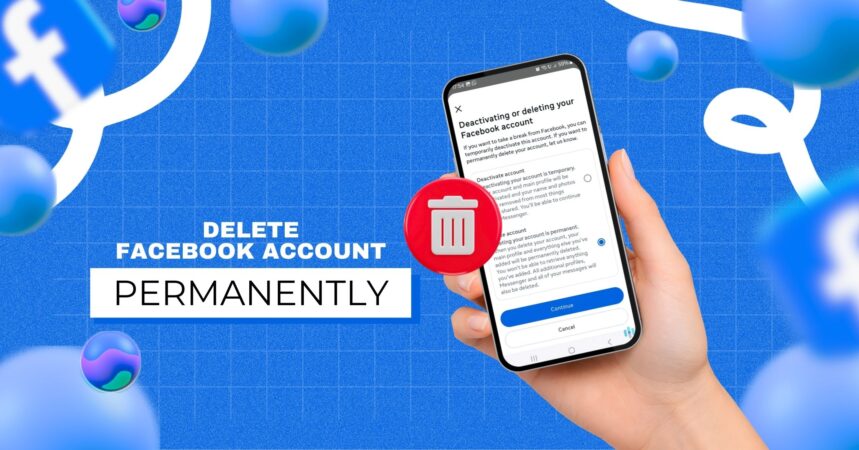
Social media has become a central part of everyday life. However, many people are now reconsidering how much time they spend online and how much personal information they share.
As a result, more users are choosing to permanently delete their social media accounts. One of the most common platforms people want to leave is Facebook.
There are several reasons why someone might want to delete their account. For instance, privacy concerns, data tracking, mental health, and excessive screen time are among the biggest motivations.
Furthermore, frequent data leaks and targeted advertising have made many users more cautious about their digital footprint.
Nevertheless, deleting a Facebook account permanently is not always straightforward, especially when using a mobile device.
The process involves several steps, and it is important to understand what will happen to your data before proceeding.
Therefore, this comprehensive guide explains how to delete FB account permanently from mobile, along with important precautions, troubleshooting tips, and privacy recommendations.
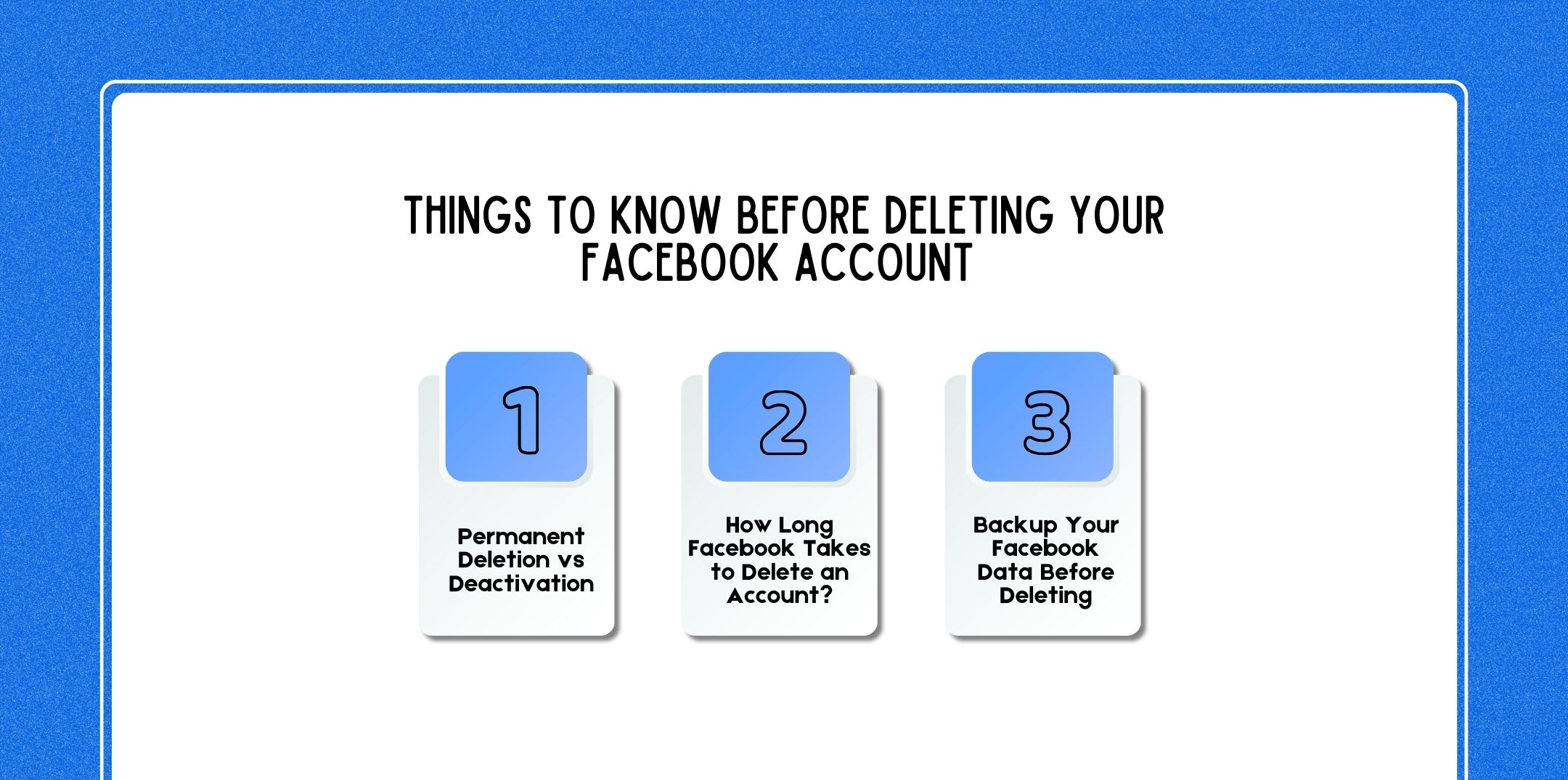
Before permanently deleting your account, it is important to understand how the process works. Otherwise, you might lose access to valuable data or services unexpectedly.
First of all, it is essential to understand the difference between deactivating and permanently deleting your Facebook account.
When you deactivate your account:
In other words, deactivation is a temporary break from Facebook.
However, when you permanently delete your account:
Therefore, permanent deletion is irreversible after a certain period.
Although the deletion request happens immediately, Facebook does not delete your account instantly.
Instead, the process works in stages:
However, during those 90 days, your data is not visible to other users.
Before deleting your account, it is strongly recommended to download your data.
Otherwise, you will lose access to:
To download your information:
After processing, Facebook will provide a downloadable file containing your account data.
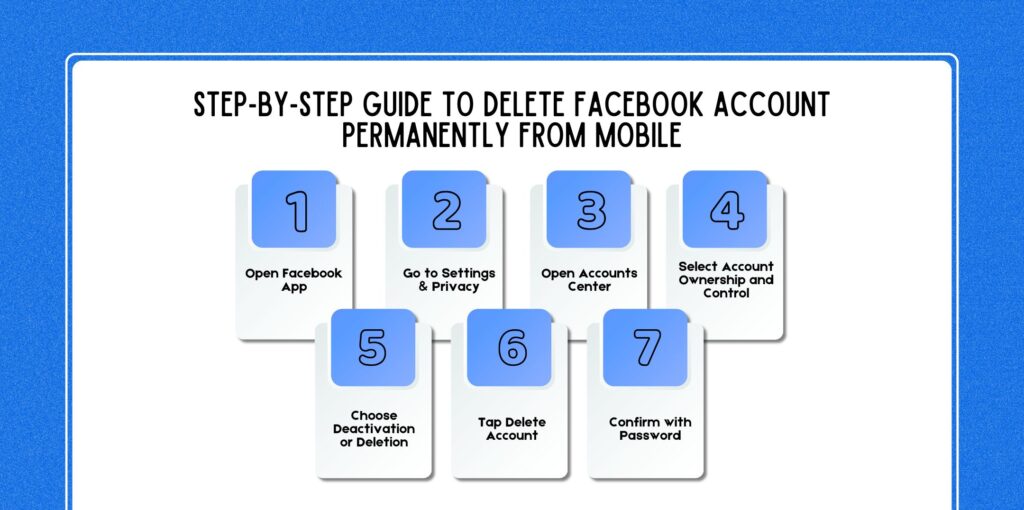
Now let’s walk through the full process using the Facebook mobile app.
First, launch the Facebook app on your smartphone.
Make sure you are logged into the account you want to delete. If you manage multiple accounts, confirm you are using the correct one.
Next:
This section contains all account management and privacy controls.
After entering Settings:
Accounts Center manages your connected accounts across platforms such as:
This area controls account ownership, login information, and deletion options.
Inside Accounts Center:
This section allows you to manage your account’s lifecycle, including deactivation and deletion.
Next, you will see two options:
Select Delete Account.
At this stage, Facebook will ask why you want to delete your account. While answering is optional, providing feedback helps improve the platform.
After selecting deletion:
Facebook may offer alternatives such as deactivation or downloading your information. However, you can continue with permanent deletion.
Finally:
Once confirmed, your deletion request will begin. Your account will then enter the 30-day deletion waiting period.
If you do not want to use the app, you can also delete your account using a mobile browser.
Follow these steps:
The remaining steps are identical to the app process.
Fortunately, Facebook allows users to cancel deletion within 30 days.
To cancel deletion:
After canceling, your account will be restored with all data intact. However, if the 30-day period passes, recovery becomes impossible.
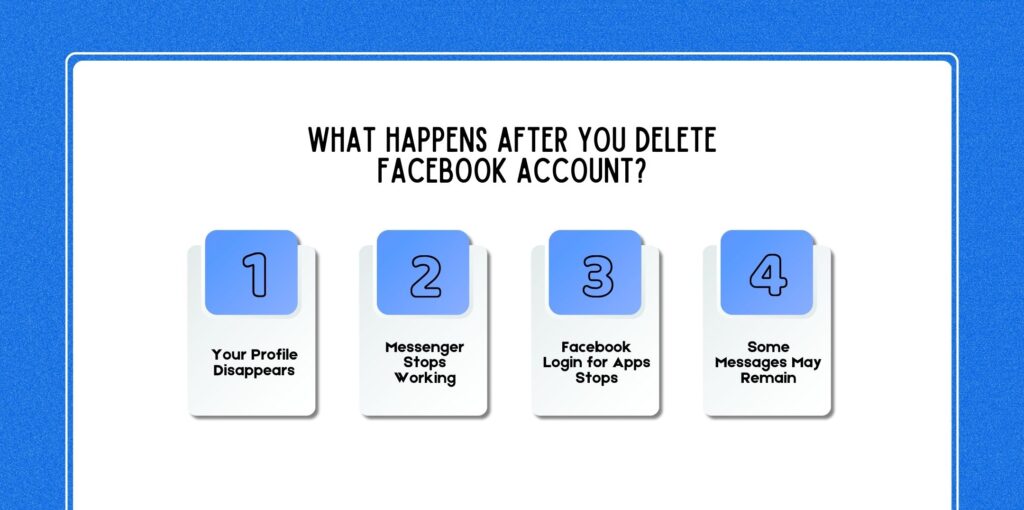
Deleting your account triggers several important changes.
First, your profile will become invisible to other users. Your timeline, posts, and photos will no longer appear in searches or friend lists.
Because Messenger is linked to your Facebook account, it will stop functioning once your account is deleted.
You will lose:
Many apps allow login using Facebook credentials. After deletion, this login method will stop working. Therefore, you may lose access to services connected through Facebook login.
Examples include:
Although your account disappears, some messages may still exist in other people’s inboxes. However, your profile name will usually appear as Facebook User instead.
Sometimes users encounter issues when trying to delete their accounts. Below are common problems and solutions.
If you cannot find the deletion option:
Interface changes sometimes hide certain options.
If you forgot your password:
However, once recovered, you can proceed with deletion.
If you manage a Facebook Page, deletion might be restricted.
Before deleting your account:
Otherwise, your business page may lose access.
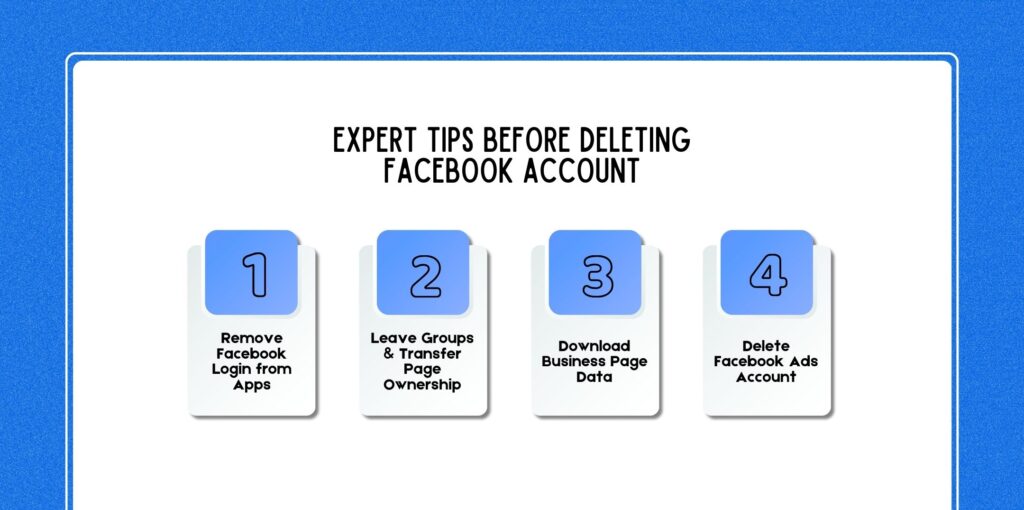
Deleting an account affects multiple services and connections. Therefore, experts recommend completing the following tasks first.
Check all apps where you used Facebook login. Update those accounts with email-based logins instead.
If you manage groups or pages:
Otherwise, communities may become unmanaged.
Business owners should download:
This data may be useful later.
If you have an advertising account, close it before deleting your Facebook profile. Otherwise, unresolved billing issues could occur.
Even after leaving Facebook, protecting your online privacy remains important.
Consider these practices:
Therefore, these habits significantly reduce digital risks.
Related Resource: What Is A Digital Footprint? Definition, Examples, Risks & How To Manage It (Complete Guide)
If you are unsure about how to delete fb account permanently from my mobile, then there are several alternatives that exist.
Deactivation hides your profile temporarily.
You can return anytime by logging back in.
Adjust privacy settings to restrict who can see your information.
For example:
Another option is simply reducing your digital footprint.
Delete:
Therefore, this approach keeps your account active while improving privacy.
Here are a few questions and queries on the topic of how to delete fb account permanently from a mobile that others have asked, and it might be helpful for you as well.
Yes. You can delete your account using either the Facebook app or a mobile browser.
Facebook provides a 30-day cancellation window, while complete data deletion may take up to 90 days.
You can recover it within 30 days. After that period, recovery is impossible.
Yes. Deleting your Facebook account will also disable Messenger.
Not entirely. Messages sent to others may remain in their inboxes.
All photos, videos, and posts are permanently removed from Facebook servers after the deletion process completes.
No. Facebook requires password verification for security reasons.
Yes. The process is similar in Facebook Lite through the Settings menu.
Deactivation is temporary and reversible, while deletion permanently removes your account and data.
No. However, removing the app from your phone can help avoid accidental logins or distractions.
In conclusion, knowing how to delete fb account permanently from mobile is a significant step toward improving privacy and reducing digital distractions.
While the process is relatively simple on mobile devices, it is important to understand the consequences before proceeding.
However, by backing up your data, removing connected apps, and carefully following the deletion steps, you can ensure a smooth transition away from the platform.
Ultimately, taking control of your online presence allows you to protect your personal information and maintain a healthier relationship with technology.

Nabamita Sinha loves to write about lifestyle and pop-culture. In her free time, she loves to watch movies and TV series and experiment with food. Her favorite niche topics are fashion, lifestyle, travel, and gossip content. Her style of writing is creative and quirky.