How To Save Audacity File As MP3

How To Save An Audacity File As MP3? (The Ultimate 2026 In-Depth Guide For Podcasters, Musicians, And Content Creators)

If you record podcasts, YouTube voiceovers, audiobooks, online courses, or music, you’ve likely used Audacity.

It’s one of the most powerful free audio editing tools available today. But one question continues to dominate search results:
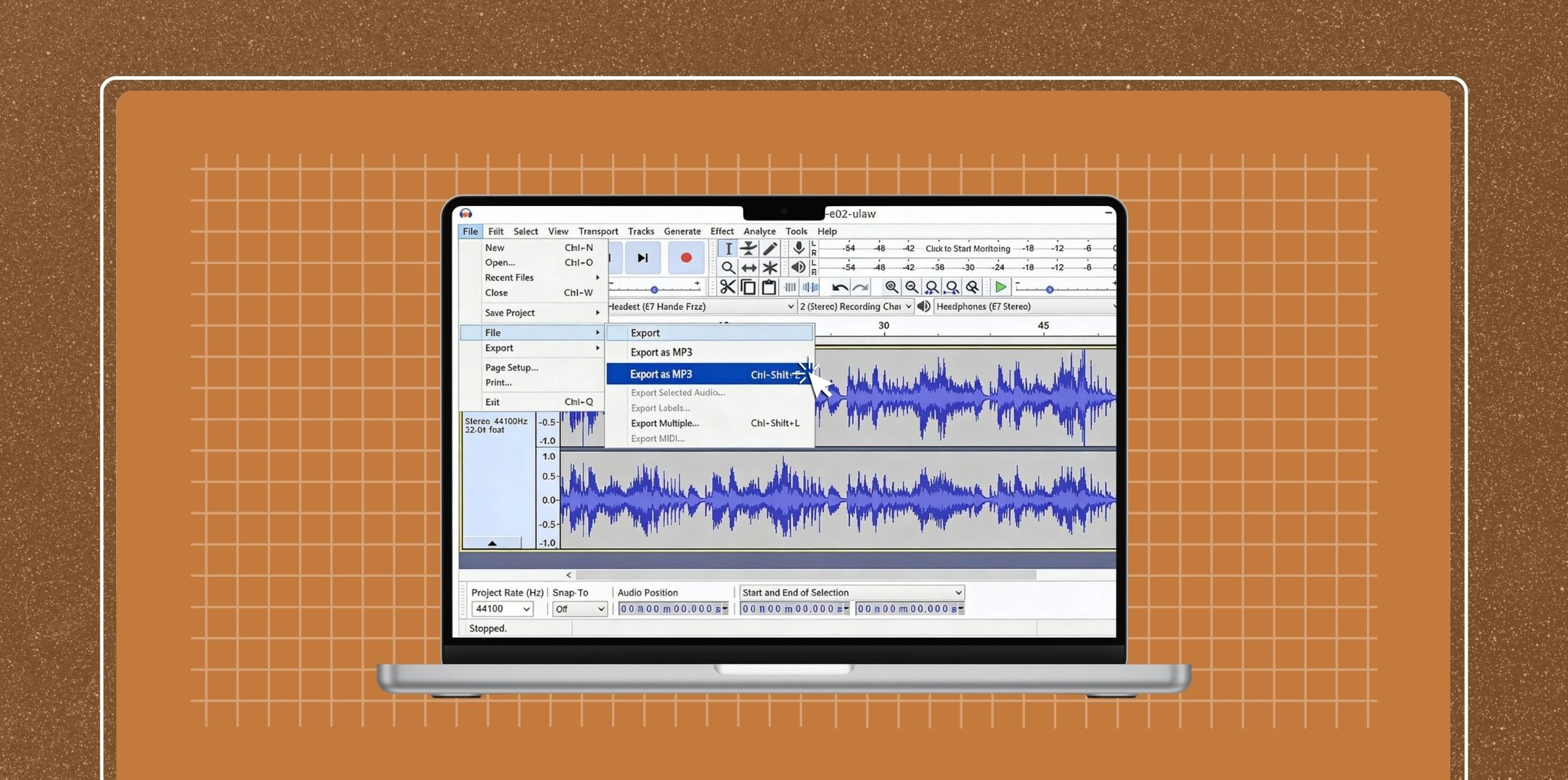
How To Save An Audacity File As MP3?

How to Save an Audacity File as MP3

At first glance, exporting seems simple. Click “Export as MP3,” choose a location, and you’re done.

But if you want professional-quality sound, smaller file sizes, proper metadata, correct bitrate selection, and compatibility with podcast platforms like Spotify and Apple Podcasts, you need to understand the process deeply.

This guide is designed for beginners and experienced creators who want maximum control over their audio quality.

Understanding Audacity Basics: Save vs Export

Before learning How to Save an Audacity File as MP3, you must understand something crucial:

Audacity treats saving and exporting as two completely different processes.

1. What Happens When You “Save” in Audacity?

When you go to:

File > Save Project

Audacity saves your work as a .aup3 project file.

This file:

  • Stores all tracks
  • Preserves edits
  • Keeps applied effects
  • Retains labels and markers
  • Allows future editing

But here’s the key point:

A .aup3 file is NOT playable outside Audacity.

You cannot upload it to Spotify, email it to someone, or play it in VLC.

It’s like a Photoshop file (.psd). It’s editable, not final.

2. What Happens When You “Export”?

When you choose:

File > Export > Export as MP3

Audacity:

  • Mixes all tracks together
  • Applies all effects permanently
  • Creates a compressed audio file
  • Makes it playable everywhere

Exporting creates the final product.

Although WAV provides higher quality, MP3 remains the industry standard because:

  • Smaller file size
  • Faster uploads
  • Compatible with all devices
  • Accepted by podcast hosting platforms
  • Ideal for streaming

For podcasters especially, MP3 strikes the perfect balance between quality and file size.
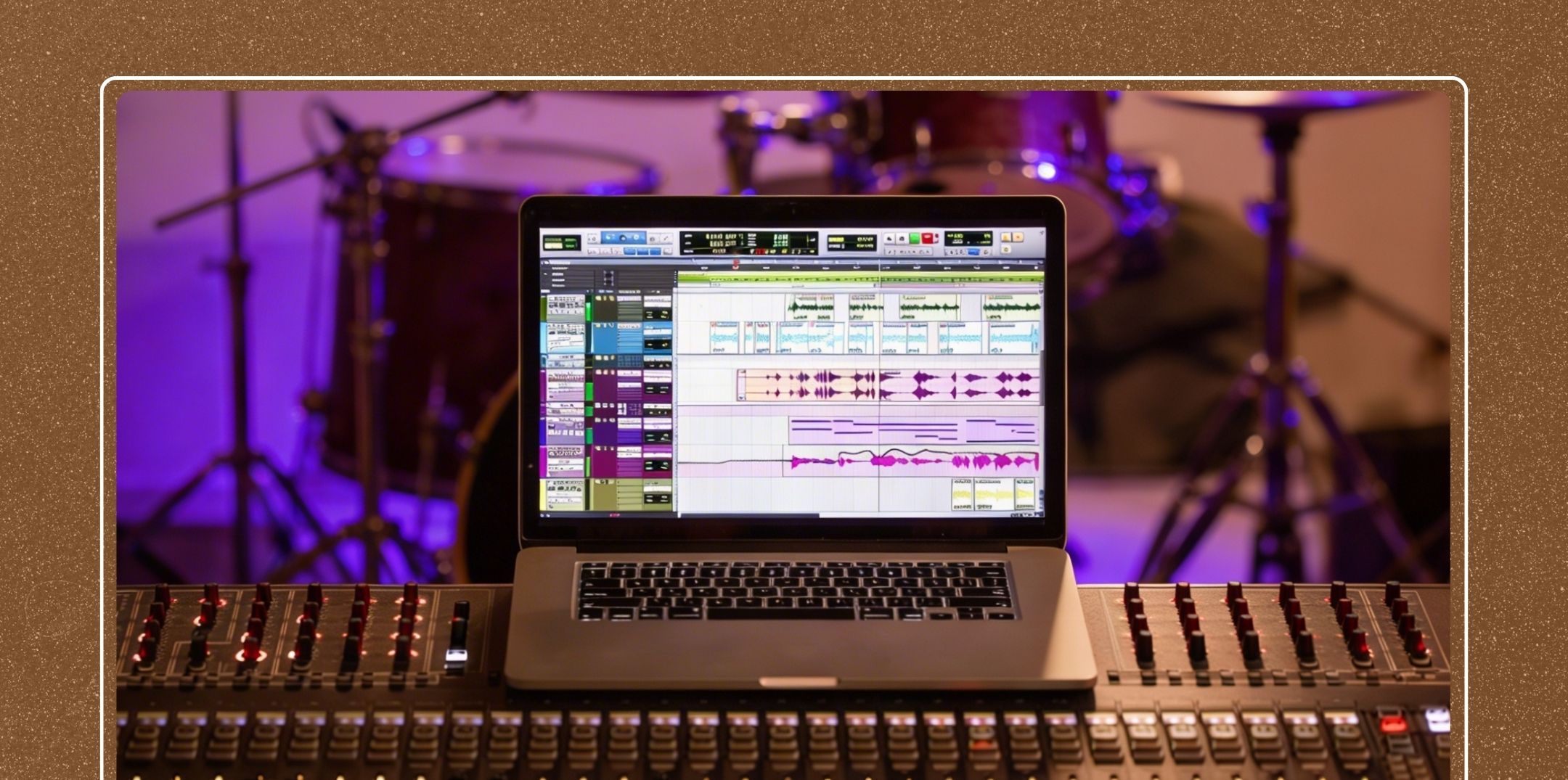
Finalize Your Audio Before Exporting

Finalize Your Audio Before Exporting

Exporting is the final step. Before that, you must polish your audio. Let’s go through essential editing processes in detail.

1. How to Remove Background Noise in Audacity?

Background noise ruins professional sound quality.

Common problems:

  • Fan hum
  • AC noise
  • Static
  • Electrical buzz
  • Keyboard typing

2. Step-by-Step Noise Reduction

  1. Highlight a section with only background noise
  2. Go to Effect > Noise Reduction
  3. Click Get Noise Profile
  4. Select entire track (Ctrl + A)
  5. Return to Effect > Noise Reduction
  6. Adjust settings:
    1. Noise Reduction: 6–12 dB
    1. Sensitivity: 6.00
    1. Frequency Smoothing: 3 bands
  7. Click OK

Do not overdo noise reduction. Too much creates robotic artifacts.

Pro Tip: Always record in a quiet room to minimize editing later.

How to Cut a Track in Audacity?

Clean editing improves listener retention.

How to Cut a Track in Audacity:

  1. Select unwanted portion
  2. Press Delete

OR

  • Go to Edit > Remove Special > Trim Audio

This is essential for:

  • Removing mistakes
  • Cutting long pauses
  • Deleting repeated sentences
  • Editing interviews

How To Move Audio In Audacity?

How to Move Audio in Audacity

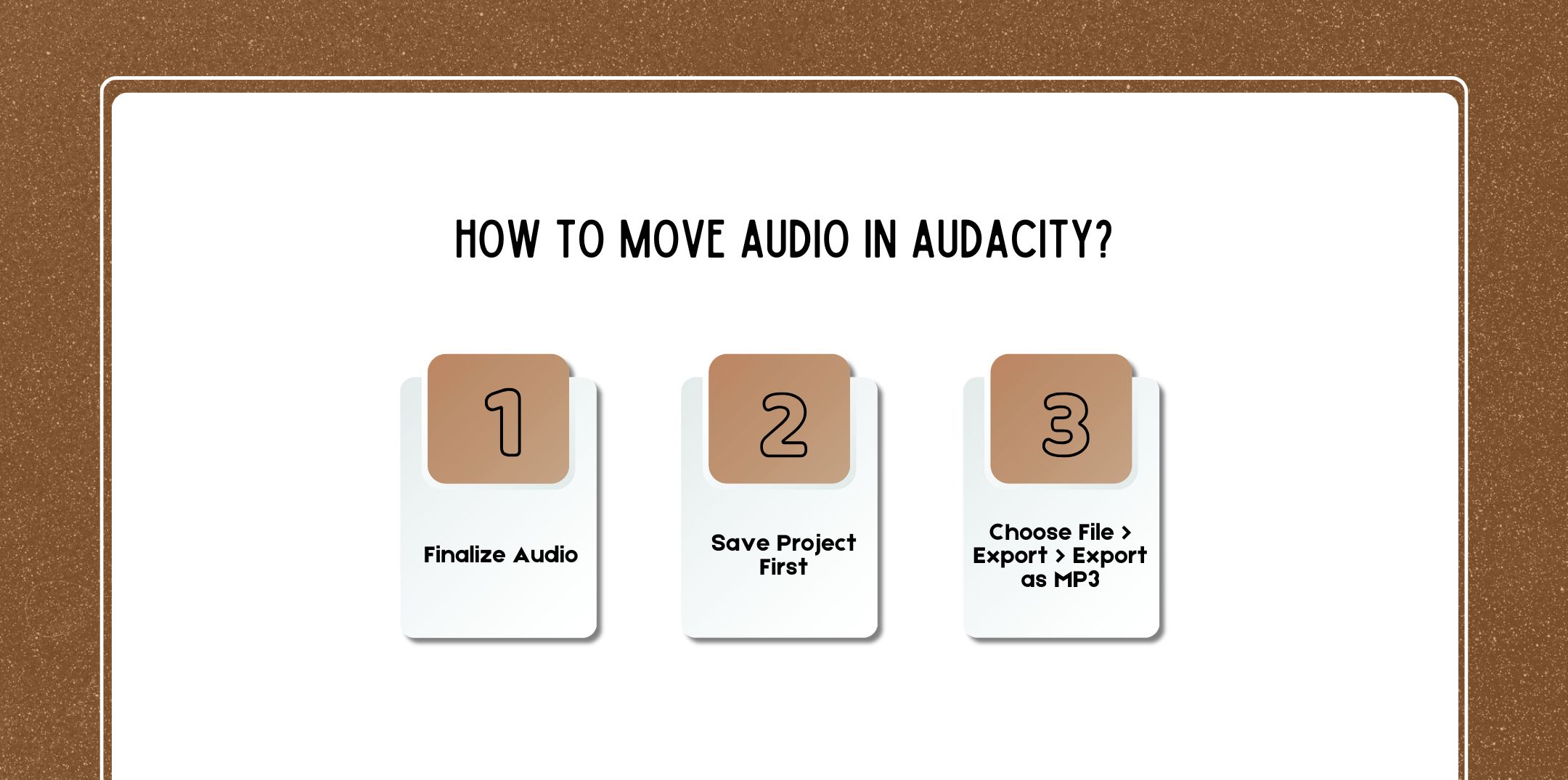
Here is a step-by-step process on how to move audio in Audacity

Step 1: Finalize Audio

Ensure:

  • Noise removed
  • Mistakes cut
  • Fades applied
  • Normalization complete
  • Compression applied

Listen to entire track once.

Step 2: Save Project First

File > Save Project

Always keep an editable backup.

Step 3: Choose File > Export > Export as MP3

This opens export window.

Configure MP3 Export Settings (Detailed Breakdown)

This is where quality decisions happen.

1. Bit Rate Mode Explained

You will see:

  • Constant (CBR)
  • Variable (VBR)
  • Average (ABR)

Constant Bit Rate (CBR)

  • Same bitrate throughout
  • Predictable file size
  • Maximum compatibility

Best for:

  • Podcast hosting platforms
  • Audiobooks

Variable Bit Rate (VBR)

  • Bitrate adjusts dynamically
  • Smaller file size
  • Efficient compression

Best for:

  • Music
  • YouTube uploads

Average Bit Rate (ABR)

  • Hybrid approach
  • Balanced compression

2. Quality / Bitrate Options

Bitrate determines sound clarity and file size.

BitrateQualityUse Case
64 kbpsLowBasic speech
96 kbpsGoodVoice podcast
128 kbpsStandardPodcast standard
192 kbpsHighPodcast + music
320 kbpsVery HighMusic production

For spoken podcasts:

128 kbps CBR is ideal

3. Channel Mode

Options:

  • Mono
  • Joint Stereo
  • Stereo

When to Choose Mono:

  • Single speaker
  • Voice-only podcast
  • Smaller file size needed

When to Choose Stereo:

  • Music
  • Multi-speaker panning
  • Sound design elements

Metadata Tags & Naming

After choosing the save location, the metadata window appears.

Add:

  • Title
  • Artist
  • Album (Podcast name)
  • Year
  • Genre (Podcast)
  • Episode number

Proper metadata ensures:

  • Correct display on podcast apps
  • Organized media library
  • Better listener experience

Best Settings For Common Use Cases

Best Settings for Common Use Cases

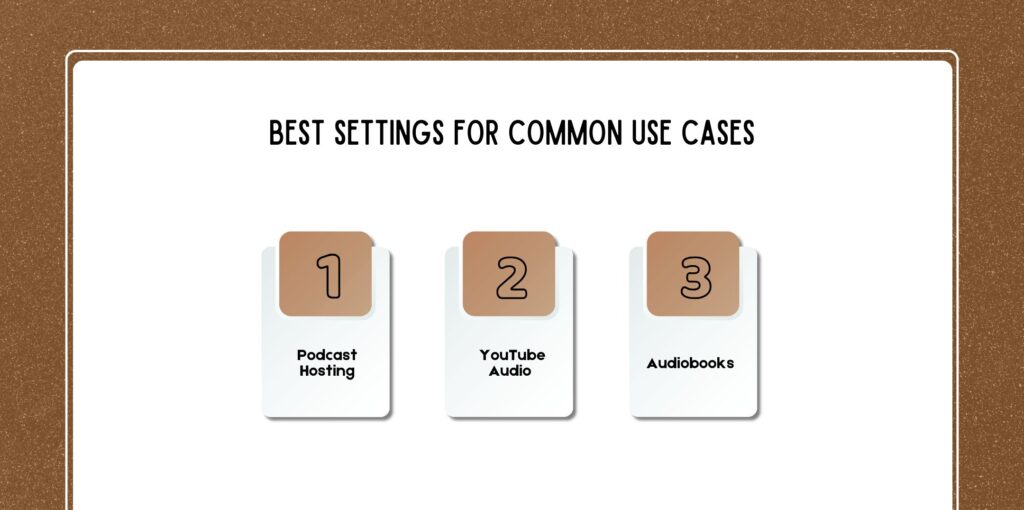
1. Podcast Hosting (Spotify, Apple Podcasts)

  • 128 kbps CBR
  • Mono (voice-only)
  • Normalize -1 dB
  • -16 LUFS loudness

2. YouTube Audio

  • 192 kbps
  • Stereo
  • VBR acceptable

3. Audiobooks

  • 96–128 kbps
  • Mono
  • Strict noise reduction
  • Consistent loudness

How Long Should A Podcast Be?

Export settings are important, but content length matters too.

Many creators ask:

How long should a podcast be?

General guidelines:

  • Solo podcast: 15–30 minutes
  • Interview podcast: 30–60 minutes
  • Deep dive show: 45–90 minutes

Consistency matters more than length.

Troubleshooting Common Export Issues

Troubleshooting Common Export Issues

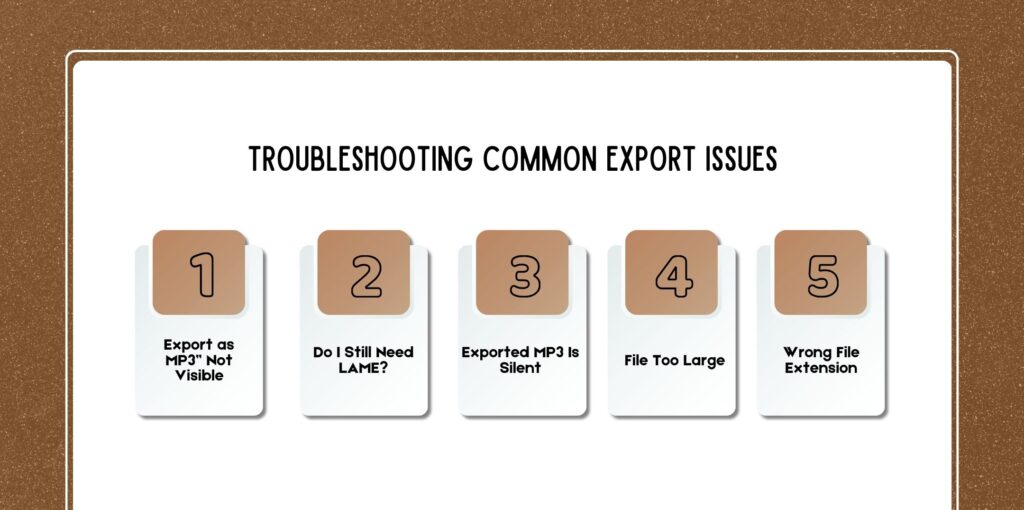
1. “Export As MP3” Not Visible

Update Audacity to latest version.

2. Do I Still Need LAME?

Older versions required LAME encoder.

Modern Audacity includes built-in MP3 support.

3. Exported MP3 Is Silent

Check:

  • Track muted?
  • Gain slider low?
  • No waveform?
  • Master output muted?

4. File Too Large

Reduce:

  • Bitrate
  • Stereo to Mono
  • Use VBR

5. Wrong File Extension

Enable file extensions in Windows. Rename manually to .mp3 if needed.
Expert Tips And Best Practices

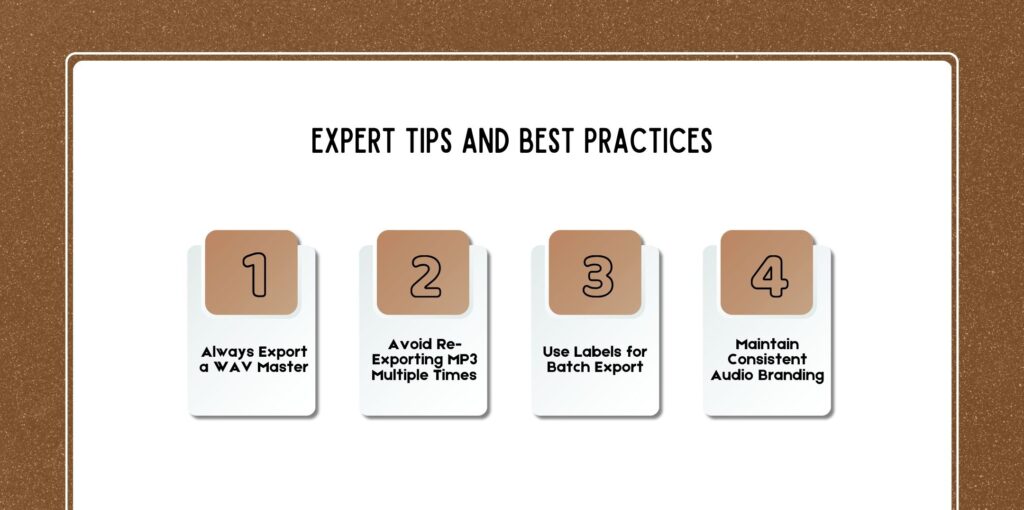
Expert Tips and Best Practices

1. Always Export A WAV Master

Keep:

  • WAV (high quality archive)
  • MP3 (distribution)

2. Avoid Re-Exporting MP3 Multiple Times

Each MP3 export reduces quality slightly.

3. Use Labels For Batch Export

File > Export > Export Multiple

Useful for:

  • Chapter splitting
  • Course modules
  • Album tracks

4. Maintain Consistent Audio Branding

Use:

  • The same intro music
  • The same loudness
  • The same export settings

Alternatives To Audacity For MP3 Export

While Audacity is powerful, alternatives include:

  • Adobe Audition
  • Reaper
  • GarageBand
  • Descript
  • Hindenburg Journalist

If editing feels overwhelming, you can hire the best podcast editing and production companies. They handle:

  • Noise reduction
  • Mixing
  • Mastering
  • Show notes
  • Publishing

This is ideal for busy creators.

FAQs

Here are a few questions and queries on the topic of how to save audacity files as mp3 that others have asked that you might find helpful at the same time.

1. Can Audacity Save Directly as MP3?

Yes, modern versions of Audacity can export directly as MP3.

To do this:

  1. Click File
  2. Select Export
  3. Choose Export as MP3
  4. Select file location
  5. Configure bitrate and other settings
  6. Add metadata
  7. Click OK

However, it’s important to understand that Audacity does not technically “save” as MP3 it exports as MP3.

  • Save Project (.aup3) keeps your file editable.
  • Export as MP3 creates a final, compressed audio file.

If you try to simply use “Save,” you will not get an MP3 file. Always use the Export option for final output.

2. Why Don’t I See “Export as MP3” in Audacity?

There are several possible reasons:

1. You’re Using an Outdated Version

Older versions of Audacity required a separate MP3 encoder called LAME. If you don’t see “Export as MP3,” update to the latest version of Audacity from the official website.

Modern versions include built-in MP3 export support.

2. The Menu Layout Has Changed

In newer versions, MP3 export may appear under:

File > Export > Export Audio

Then choose MP3 from the file format dropdown.

3. Software Installation Issue

If your installation is incomplete or corrupted:

  • Reinstall Audacity
  • Restart your computer
  • Check for software updates

3. What Bitrate Should I Use for Podcast MP3 Exports?

The correct bitrate depends on your content type.

Voice-Only Podcasts

  • 128 kbps CBR (Constant Bit Rate) is the industry standard.
  • 96 kbps is acceptable for smaller file sizes.
  • 128 kbps offers excellent balance between quality and size.

Podcasts with Music

  • 160–192 kbps recommended.

Audiobooks

  • 96–128 kbps mono is often sufficient.

Why 128 kbps CBR Is Standard?

  • Compatible with all podcast platforms
  • Predictable file size
  • Good speech clarity
  • Accepted by Spotify, Apple Podcasts, and most hosts

If you’re unsure, choose:

128 kbps, Constant Bit Rate (CBR), Mono (for voice-only shows).

4. Do I Still Need LAME to Export MP3?

No, not in modern versions of Audacity.

Older versions required downloading and installing the LAME MP3 encoder separately.

Now:

  • MP3 encoding is built-in
  • No additional installation needed
  • Export works immediately

If you’re prompted for LAME, your version is outdated update Audacity.

5. How Do I Add Metadata Tags?

After choosing Export as MP3, Audacity opens a Metadata Editor window.

You can add:

  • Track Title (Episode Name)
  • Artist Name (Host Name)
  • Album Title (Podcast Name)
  • Year
  • Genre (Podcast, Spoken Word)
  • Comments (Episode description)

Why Metadata Matters?

Metadata helps:

  • Podcast apps display correct episode information
  • Music players show proper track titles
  • Organize files in media libraries
  • Improve searchability

Best Practice for Podcasts

Fill in:

  • Episode Title
  • Show Name
  • Episode Number
  • Year
  • Genre: Podcast

You can also use Edit > Metadata to create reusable templates for future exports.

6. Can I Batch Export Multiple MP3 Files?

Yes, Audacity supports batch exporting.

Method 1: Export Multiple

  1. Add labels where you want tracks split

(Tracks > Add Label at Selection)

  • Go to File > Export > Export Multiple
  • Choose:
    • Split files based on labels
    • Export tracks separately
  • Select MP3 format
  • Configure settings
  • Click Export

This is useful for:

  • Audiobook chapters
  • Course modules
  • Album tracks
  • Multi-segment podcasts

Method 2: Macros (Advanced Users)

You can use:

Tools > Macros

This allows automated batch processing for:

  • Applying compression
  • Normalizing audio
  • Exporting multiple files automatically

7. Why Is My Exported MP3 Silent?

This is one of the most common issues. Here are the main causes:

1. Track Is Muted

Check:

  • Mute button enabled?
  • Solo button affecting other tracks?

2. Volume Slider Too Low

Each track has a gain slider on the left panel.

Make sure it’s not set to zero.

3. No Waveform Data

If the track looks flat (no waveform), the recording may have failed.

Zoom in to verify waveform exists.

4. Playback Device Configuration

Check:

  • Correct input device selected
  • Correct output device selected

5. Exporting Empty Selection

If you highlight empty space and export selection only, the file may be silent.

Solution:

Press Ctrl + A to select the entire track before exporting.

8. How To Keep High Quality When Exporting MP3?

MP3 is a compressed format, so quality depends on settings.

Best Practices:

Here are a few best practices when you are exporting high quality audio to MP3.

1. Use Appropriate Bitrate

  • 128–192 kbps for podcasts
  • 192–320 kbps for music

2. Avoid Multiple MP3 Re-Exports

Each time you export MP3 and re-import it, quality degrades.

Best workflow:

  • Keep WAV master file
  • Export MP3 only once for distribution

3. Normalize Before Exporting

Use:

Effect > Normalize

Set peak to -1.0 dB

This prevents clipping and distortion.

4. Use Compression Properly

Apply mild compression to balance loudness before exporting.

5. Record at Good Quality

Export settings cannot fix poor recordings.

Use:

  • Good microphone
  • Quiet room
  • Proper mic placement

9. Differences Between VBR and CBR in Audacity Exports

Choosing between VBR and CBR impacts file size and compatibility.

1. CBR (Constant Bit Rate)

How It Works:

  • Uses same bitrate throughout file
  • 128 kbps always equals 128 kbps

Advantages:

  • Predictable file size
  • Better compatibility
  • Accepted by all podcast platforms
  • Stable streaming performance

Disadvantages:

  • Slightly larger file sizes compared to VBR

Best for:

  • Podcasts
  • Audiobooks
  • Professional distribution

2. VBR (Variable Bit Rate)

How It Works:

  • Bitrate adjusts based on audio complexity
  • Quiet sections use less data
  • Complex music sections use more data

Advantages:

  • Smaller file size
  • Efficient compression
  • Better quality-to-size ratio

Disadvantages:

  • Some older players may misreport duration
  • Less predictable file size

Best for:

  • Music projects
  • YouTube content
  • Personal storage

Which Should You Choose?

For podcasts:

CBR 128 kbps is safest.

For music:

VBR at high quality is better.

10. How to Fix Wrong File Extensions After Exporting?

Sometimes files appear as:

  • episode.mp3.wav
  • episode.mp3.txt

This happens because Windows hides file extensions by default.

Fix in Windows:

  1. Open File Explorer
  2. Click View
  3. Enable File name extensions
  4. Rename file properly to: episode.mp3

Fix on Mac:

  1. Right-click file
  2. Choose Get Info
  3. Edit name field
  4. Ensure extension is .mp3

Why This Matters?

Wrong extensions can:

  • Prevent playback
  • Confuse upload platforms
  • Trigger format errors

Always confirm the file ends with .mp3

Saving Your Audacity Files

Mastering How to Save an Audacity File as MP3 is about more than clicking export.

It requires:

  • Understanding Save vs Export
  • Cleaning audio professionally
  • Removing background noise
  • Cutting and moving tracks
  • Applying Audacity fade in/fade out
  • Normalizing audio
  • Using compression wisely
  • Choosing the correct bitrate and channel mode
  • Adding metadata properly
  • Testing final output

Audacity remains one of the best free tools for podcasters and creators. With proper export settings and careful editing, your audio can compete with professionally produced shows.

Whether you’re starting your first podcast and wondering how long a podcast should be. Or you’re scaling and considering the best podcast editing and production companies.

Mastering MP3 export ensures your content is platform-ready, high-quality, and audience-friendly.

author image

Nabamita Sinha loves to write about lifestyle and pop-culture. In her free time, she loves to watch movies and TV series and experiment with food. Her favorite niche topics are fashion, lifestyle, travel, and gossip content. Her style of writing is creative and quirky.

Leave a Reply

Your email address will not be published. Required fields are marked *

Related