How To Add Multiple Photos To An Instagram Story (And Why Your Brand Should Bother)
sibashree bhattacharya, 2 hours ago

Audacity is one of the most popular free audio editing tools in the world, widely used by podcasters, musicians, YouTubers, voice-over artists, and educators. And one of its most essential features is the ability to fade in fade out audio feature.
It genuinely helps creators produce professional-sounding content without abrupt starts or endings. Whether you are editing a podcast intro, background music, interviews, or sound effects, understanding how fades and crossfades work in Audacity can dramatically improve your audio quality.
In this in-depth guide, you’ll learn multiple ways to use Audacity Fade In Fade Out, from basic linear fades to advanced techniques using the Envelope Tool.
We’ll also connect these techniques to real-world podcasting workflows, including topics like Audacity normalizing audio and Audacity compressor.
We have also talked at length about how to move audio in Audacity, podcast monetization, podcast apps for advertising, and distribution strategies such as Pandora podcast submission and Apple Podcasts analytics in previous articles. Do check them out!
A fade is a gradual change in volume over time:
A crossfade blends two audio clips or tracks together so that one fades out while the other fades in. This is especially useful for:
In podcast production and music editing, fades prevent harsh cuts that can distract listeners and lower perceived quality.

Linear fades are the simplest and most used fading method in Audacity. They apply a straight-line volume change across the selected audio.
Audacity will gradually increase the volume from silence to the original level.
The audio will gradually decrease until it reaches silence.
Linear fades work well in most scenarios, especially when combined with audacity normalize audio to maintain consistent loudness across episodes.
Audacity allows you to apply fades to individual clips, not just entire tracks.
Steps To Fade A Single Clip
This is particularly helpful when editing interviews or multi-segment podcasts where you need precise control over each audio section.
However, if you’re wondering how to move audio in Audacity, then simply use the Time Shift Tool (↔ icon) to reposition clips before applying fades.
The Studio Fade Out effect provides a more natural-sounding fade compared to linear fades. It mimics professional music production techniques by tapering volume more gradually toward the end.
Many creators prefer this option when producing branded podcasts or working with the best podcast editing and production companies‘ standards.
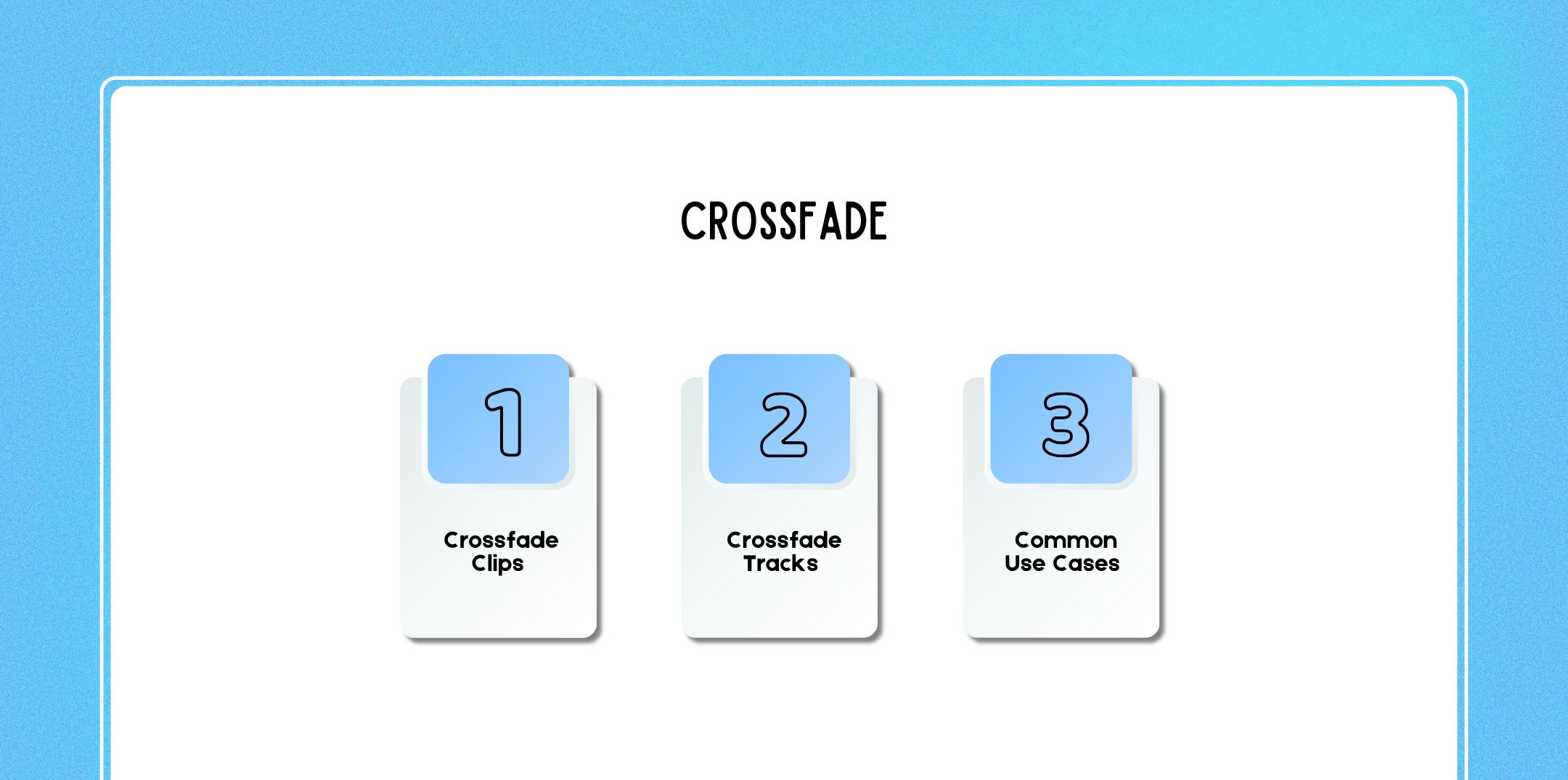
Crossfading is essential for smooth transitions between clips or tracks.
Used when two clips exist on the same track.
Steps:
Audacity automatically fades one clip out while fading the next clip in.
Used when audio exists on separate tracks.
Steps:
Crossfades are particularly useful for podcasters monetizing their content through podcast apps for advertising, where clean transitions matter for listener retention.
The Envelope Tool gives you precise, manual control over volume changes.
This method pairs perfectly with tools like Audacity Compressor, allowing you to balance vocals and music naturally without overprocessing.
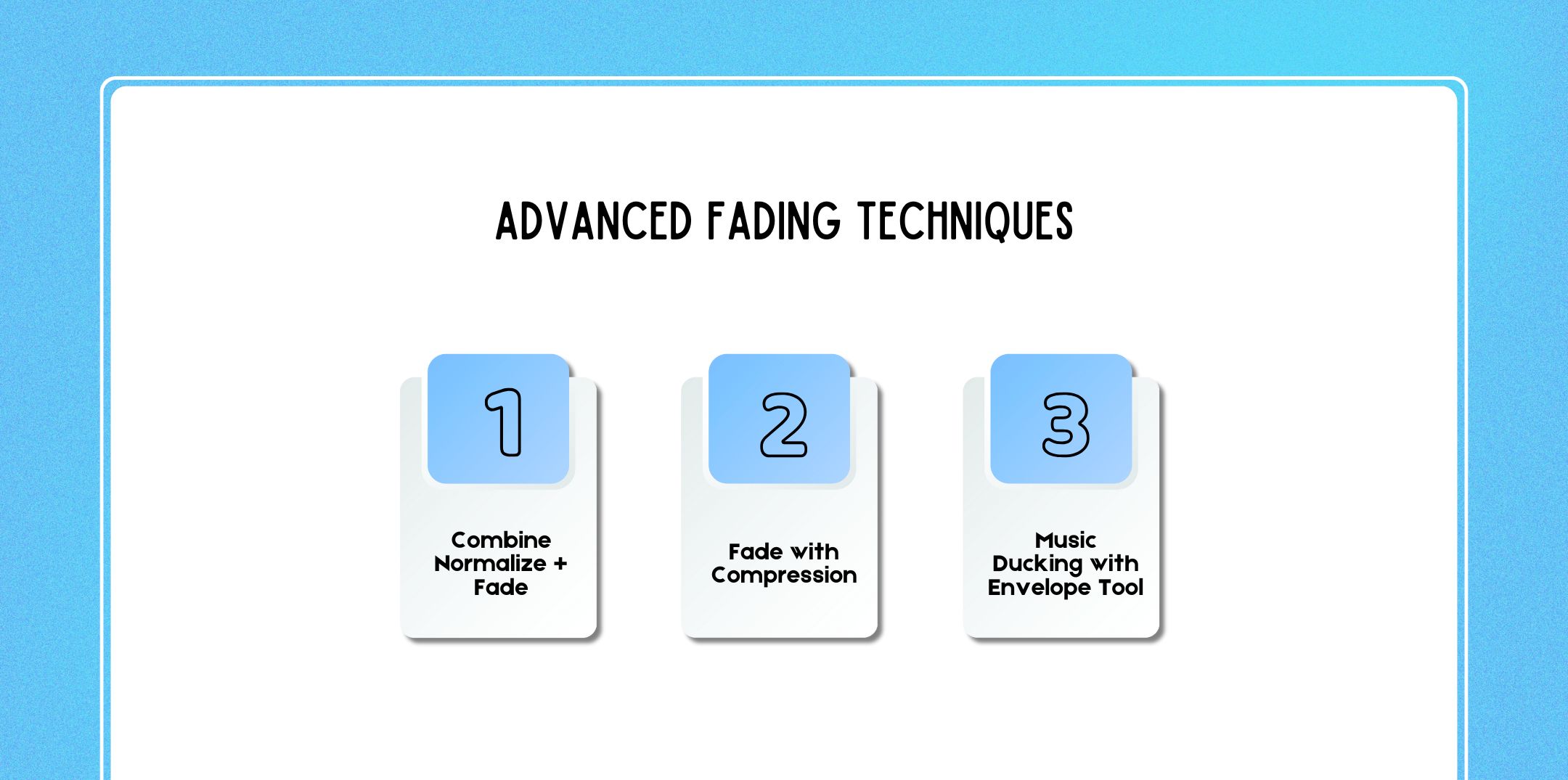
For creators who want studio-quality results, Audacity offers several advanced workflows:
This is especially important for podcasters analyzing performance using Apple Podcast Analytics, where consistent audio quality impacts listener retention.
Professional fades can directly impact your podcast’s perceived value important when thinking about how much do podcasters make and how advertisers evaluate your show.
If you’re serious about podcasting and audio production, consider learning:
Pairing strong editing skills with a professional podcast website, smart distribution, and analytics tracking can help you grow your audience and unlock new monetization opportunities.
Mastering how to fade in and fade out in Audacity is a foundational skill for anyone working with audio.
However, from simple linear fades to advanced envelope automation and crossfades, these techniques help your content sound polished, professional, and listener-friendly.
Whether you’re editing your first episode or scaling a monetized podcast, proper fading is a small detail that makes a big difference.

Sibashree has been into SEO and eCommerce content writing for more than 9 years. She loves reading books and is a huge fan of those over-the-top period dramas. Her favorite niches are fashion, lifestyle, beauty, traveling, relationships, women's interests, and movies. The strength of her writing lies in thorough research backing and an understanding of readers’ pain points.